Finding leads with Lead Scout
Lead Scout finds prospects in the Strama Lead DB or through your own Sales Navigator seat. Build the audience with filters or plain English, save it as a persona, and know the rule that trips people up: you add only the leads you loaded and selected.
Lead Scout is Strama's built-in prospector. You describe who you sell to, run a search against one of two sources, and add the results straight into a campaign or scorecard. It lives in the left sidebar under Lead Scout, and campaigns hand off to it too: in a campaign's Add flow, Search by Ideal Profile builds filters from your campaign and opens them in Lead Scout.
This article covers the two sources, how to build and save an audience, and the handful of behaviors that surprise people: what the lead count actually means, why adding leads sometimes adds fewer than you expected, and why a title you excluded can still show up.
Picking a source
Every search runs against one of two sources. You pick with the source pill at the top of the filter rail, or on the card shown before your first search.
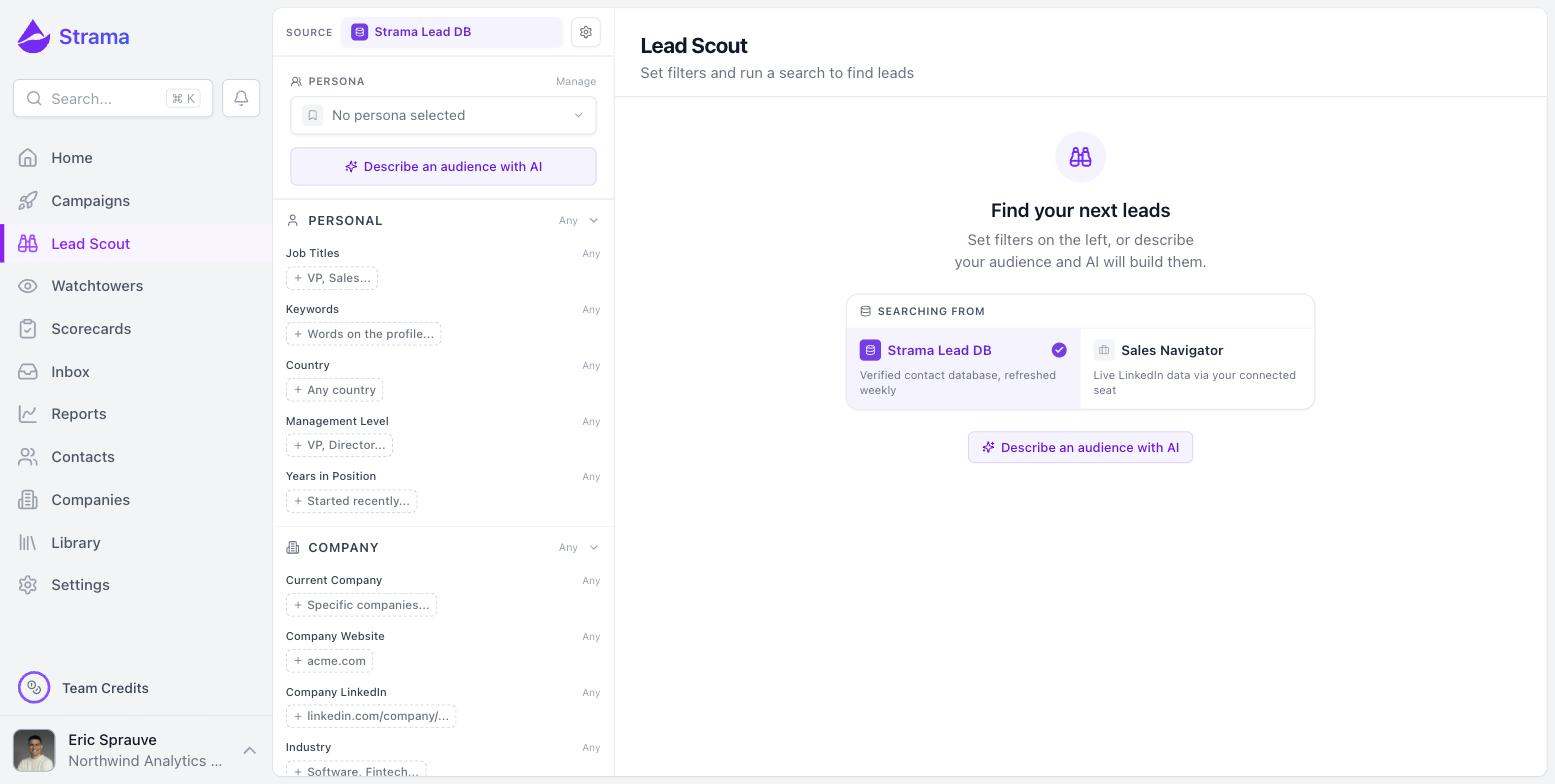
Strama Lead DB is a verified contact database, refreshed weekly. It needs nothing connected, no LinkedIn account, no seat. Searches cost 1 credit per page of up to 20 leads (see what costs credits).
Sales Navigator searches live LinkedIn data through your own connected seat. Searches are free, but they require a connected LinkedIn account whose subscription includes Sales Navigator or Recruiter. Without one, the source shows a Connect a LinkedIn account prompt and searches are blocked.
The filter rails differ slightly. Funding, revenue, company website, and company LinkedIn filters exist only on the Strama Lead DB side. Sales Navigator uses LinkedIn's own vocabulary (Location, Seniority Level, Years in Position) and suggests values from LinkedIn's lists as you type.
Note: You do not need Sales Navigator to start. The Strama Lead DB is the default source, and most teams run their first campaigns entirely from it. If you later connect a Sales Navigator seat, you can make either source your default from the source dialog.
Building the audience
The filter rail has two groups: Personal describes the person (job titles, profile keywords, country, management level, years in position) and Company describes where they work (specific companies, industry, headquarters, size, and on the Strama side funding, revenue, website, and LinkedIn URL). Most filters take both include and exclude values: green chips with a plus are required, red struck-through chips are excluded, and clicking a chip flips it between the two. Each filter accepts up to 50 values.
The fastest way to fill the rail is Describe an audience with AI. Type who you are looking for in plain English, press Build filters, and review what comes back before applying it.
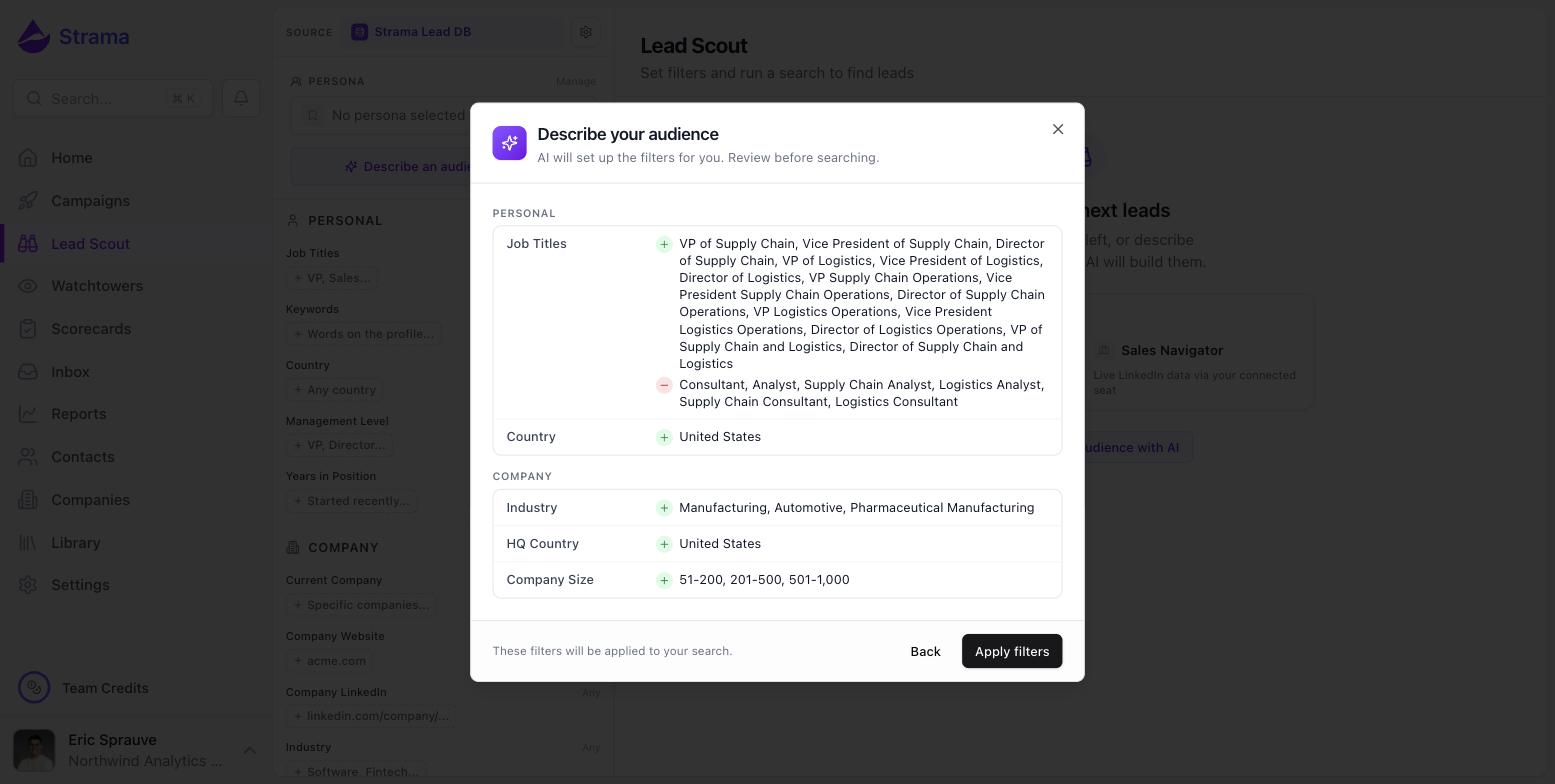
Nothing runs until you apply the filters and search, so you can go back and refine the description. Applying overlays the generated values onto your current rail: fields the AI set are replaced, fields it did not mention are left alone.
Tip: Notice how the example above turned "VPs and Directors of supply chain" into fourteen spelled-out titles. That is worth copying when you build filters by hand, because title matching does not guess seniority for you. More on that in Why results don't always match your filters.
Saving a persona
Once person-level filters are set, the persona section at the top of the rail offers Save these filters as a persona. A persona is a reusable audience definition: load it next week, point it at a different set of companies, and search again.
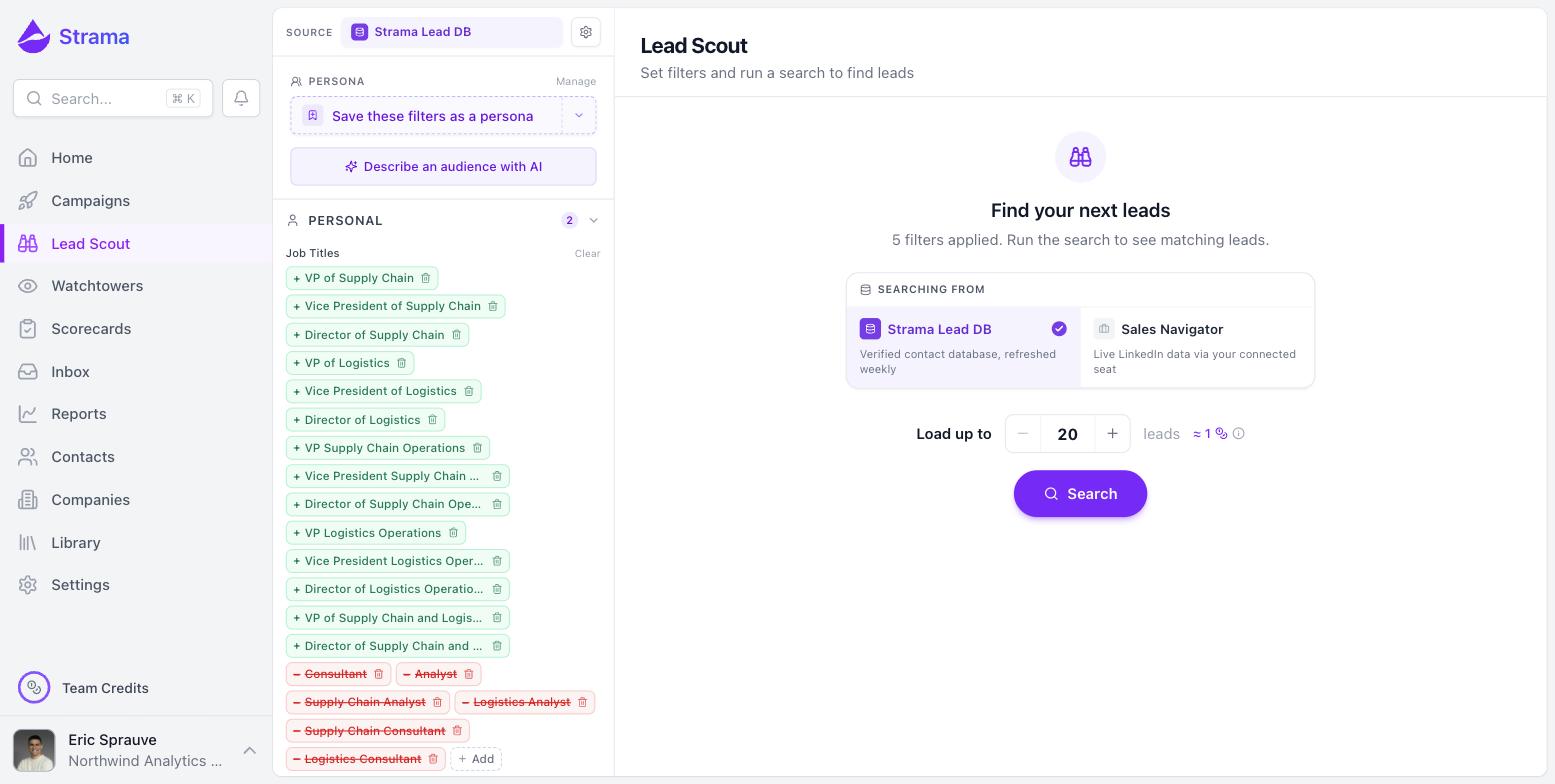
Three things to know about personas:
- They save the Personal filters only. Company filters are deliberately left out, since those change from search to search while the persona (who you sell to) stays the same.
- Saving is explicit. Editing a loaded persona shows an amber Unsaved pill until you press Save, and Lead Scout asks before discarding unsaved edits.
- Each persona is tied to the source it was built in. A Strama Lead DB persona only loads under that source, and vice versa, because the two sources speak different filter vocabularies.
The Manage link opens the persona library, where you can rename, duplicate, and delete your personas. The Team personas tab lists what your teammates have saved: you cannot edit theirs, but Copy to my personas gives you your own editable copy.
Running a search
Set how many leads to fetch with the Load up to stepper (20 to 250, in steps of 20) and press Search. Results stream in pages of 20 until they reach your target. On the Strama Lead DB each page costs 1 credit, so the estimate next to the stepper is your ceiling: load up to 100 is at most 5 credits, and you are only charged for pages that actually return leads. Sales Navigator searches show No credit cost.
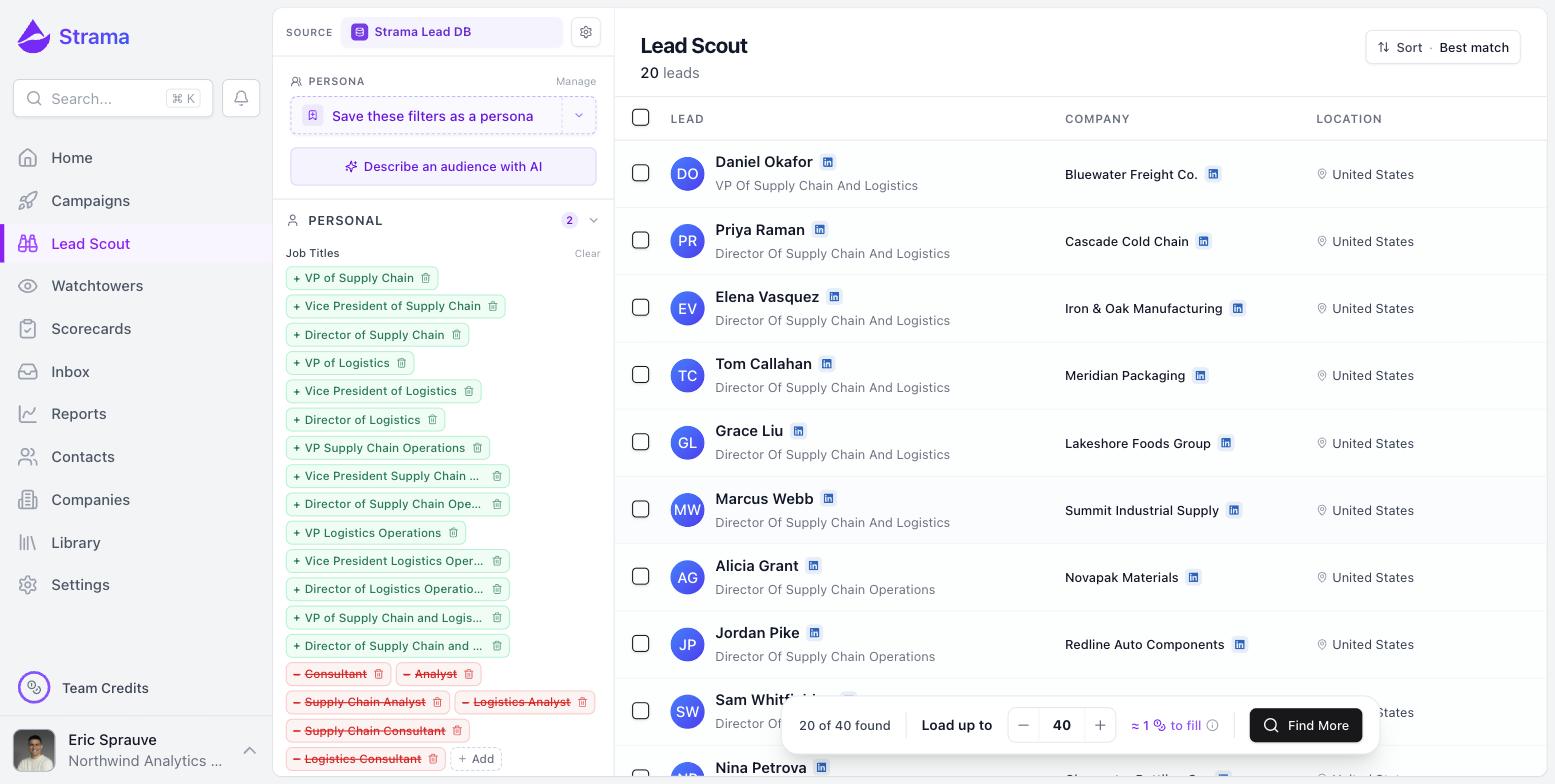
The count in the bottom bar, like "20 of 40 found", is how many leads are loaded so far against your target. It is not the total number of matches in the database; neither source reports one, so Strama never shows one. If you want to see more, raise the target or press Find More, and keep going until the bar says No more matches.
Editing filters after a search never refreshes results on its own. The list blurs under a Filters changed since the last search notice until you press Search again, so what you see always belongs to a search you actually ran.
Adding leads adds what you loaded and selected
Warning: Add to campaign and Add to scorecard act on the rows you selected, and the select-all checkbox selects only rows that are already loaded. If you loaded 20 of a much larger audience, select all adds those 20 and nothing else. Load first, then select, then add.
The reliable sequence: raise Load up to (or press Find More) until you have everyone you want on screen, tick the select-all box in the header, then add. A single search session tops out at 250 loaded leads; for a bigger audience, split the search (by country, company size, or industry) and add each slice.
What adding actually does:
- It is free and never enriches. Contacts are created from what the search already returned; finding email addresses is a separate, credit-based step you choose later.
- People already in your workspace show an In Contacts badge. Adding them attaches the existing contact to your campaign; it never creates a duplicate and never overwrites what you have. See how Strama matches contacts.
- The add dialog can also queue the next steps (scoring, sequence generation) immediately. Those cost credits as usual, and if the balance runs short the leads are still added, just left for you to advance later.
Why results don't always match your filters
Titles match phrases plus known abbreviations, and nothing else. A search for "VP of Sales" also matches "Vice President of Sales" (and the reverse), because common abbreviations like VP, Dir, Sr, and CMO are expanded in both directions. It does not reach across seniorities: "Director of Marketing" will not pull in VPs or Heads of Marketing. Add each seniority you want as its own value, or use Management Level, which matches on structure (C-Suite, VP, Director, Manager, Individual Contributor) instead of the words in the title.
An excluded title can still appear. Exclusions knock out a role, not a person. Some people hold two current roles, a fractional consultant with an operating job, for example, and someone excluded on one role can still match on the other. The row also displays the person's primary title, which is not always the role your search matched on. And Keywords filters search the whole profile (headline, about section, experience descriptions), so a keyword match, or exclusion, may not be visible in the row at all.
Company-targeted searches flag secondary roles. When you search for people at specific companies, anyone whose connection to the company is a secondary current role ranks below the primary-role matches and carries an amber warning triangle explaining exactly that.
Tip: Targeting the exec suite at small companies? On the Strama Lead DB, Management Level C-Suite also covers founders, owners, and partners, which is usually what "executive" means at a 15-person company. Combine it with Company Size 1-10 and 11-50 rather than chasing title spellings.
FAQ
Do I need Sales Navigator to use Lead Scout?
No. The Strama Lead DB is the default source and needs nothing connected; searches cost 1 credit per page of up to 20 leads. Switch to Sales Navigator when you already pay for a seat and want LinkedIn's live data or its exact filter vocabulary; those searches are free but run through your own connected LinkedIn account.
Where does Strama show how many leads a search found?
In the bar at the bottom of the results: "20 of 40 found" means 20 leads are loaded against a target of 40. There is no "total matches" number anywhere, because neither source reports one. To see everything reachable, keep pressing Find More until the bar reads No more matches (up to the 250-per-search ceiling).
Why did fewer leads get added than I expected?
Because adding acts on the rows you loaded and selected, not on everything the search could match. The select-all checkbox only covers loaded rows, so if your target was 20, select all adds at most 20. Raise Load up to or press Find More before selecting, then add.
Does the search automatically include related titles like Director and VP?
Only abbreviations, not seniorities. "VP of Sales" and "Vice President of Sales" find each other, but a Director search never returns VPs. List each seniority variant explicitly (the AI assist does this for you), or filter by Management Level instead of title text.
Why are titles I excluded still showing up?
Usually because the person holds more than one current role: the exclusion removed one role, and they matched on the other. The visible title is their primary role, which may not be the one your search matched. If the stray results share a phrase, add it as an excluded Keyword too; keyword exclusions apply to the whole profile rather than a single role.