Connecting your LinkedIn account
How to link a LinkedIn account to your sender, what sequences send on LinkedIn, the daily limits that keep your account safe, and how to reconnect when the session drops.
LinkedIn is the second channel your sequences can use alongside email. Once a LinkedIn account is linked to a sender, sequences can visit profiles, send connection invites, and follow up with direct messages after an invite is accepted, and you can hold LinkedIn conversations from the Inbox.
Connecting takes about two minutes. You sign in to LinkedIn yourself in a secure window, so Strama never sees or stores your password, and each sender links exactly one LinkedIn account.
Connecting your account
- Go to Settings > Senders & Integrations and select the sender.
- Scroll to the Connect a LinkedIn Account card and click Connect.
- In the Select LinkedIn Account dialog, click the LinkedIn tile.
- A small LinkedIn sign-in window opens. Sign in with your normal LinkedIn email and password. If your account has two-factor authentication, the prompt appears in the same window; approve it the way you always do.
- The window shows "Finishing Setting Up" and closes itself a few seconds later. Back in settings, the LinkedIn card now shows your account with a green Connected pill.
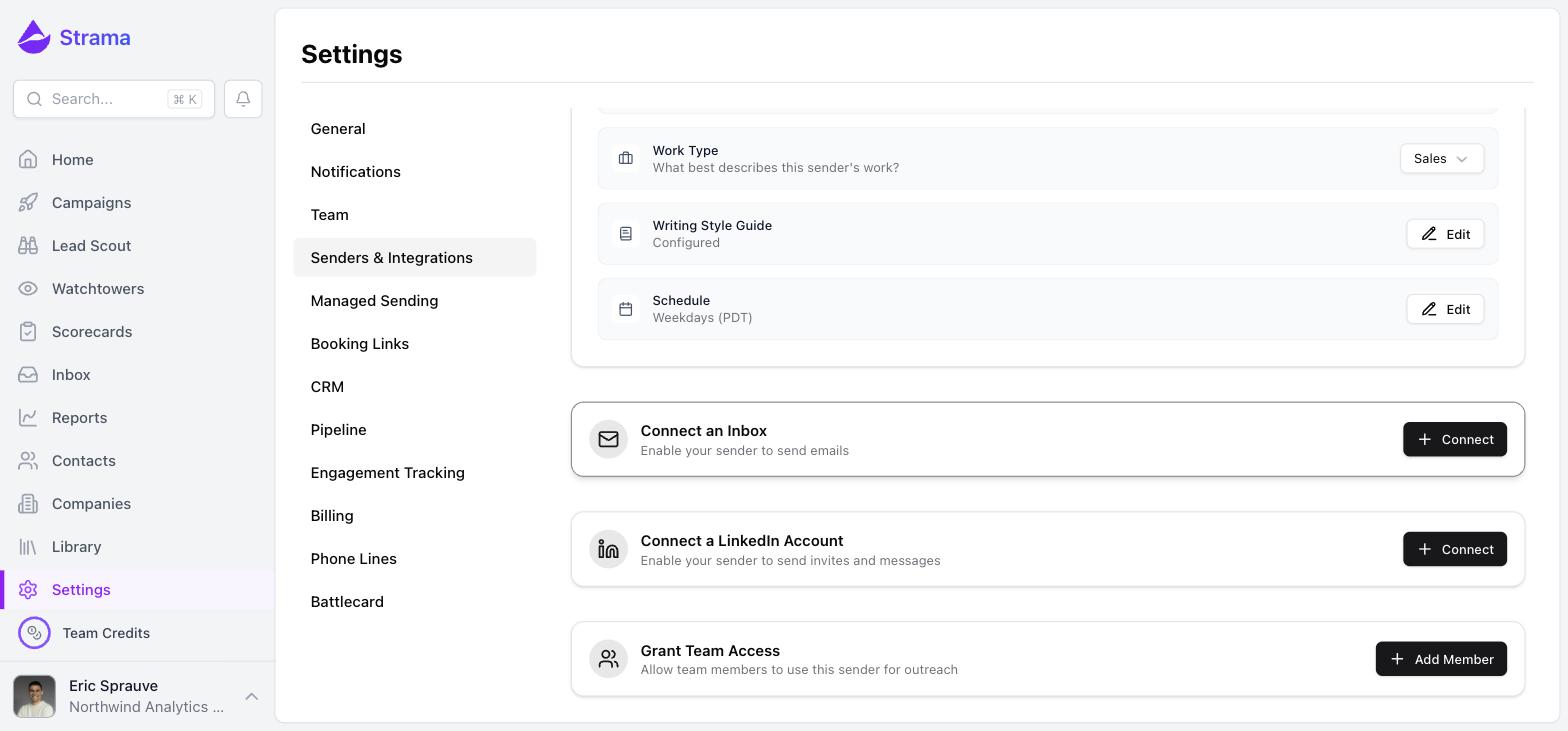
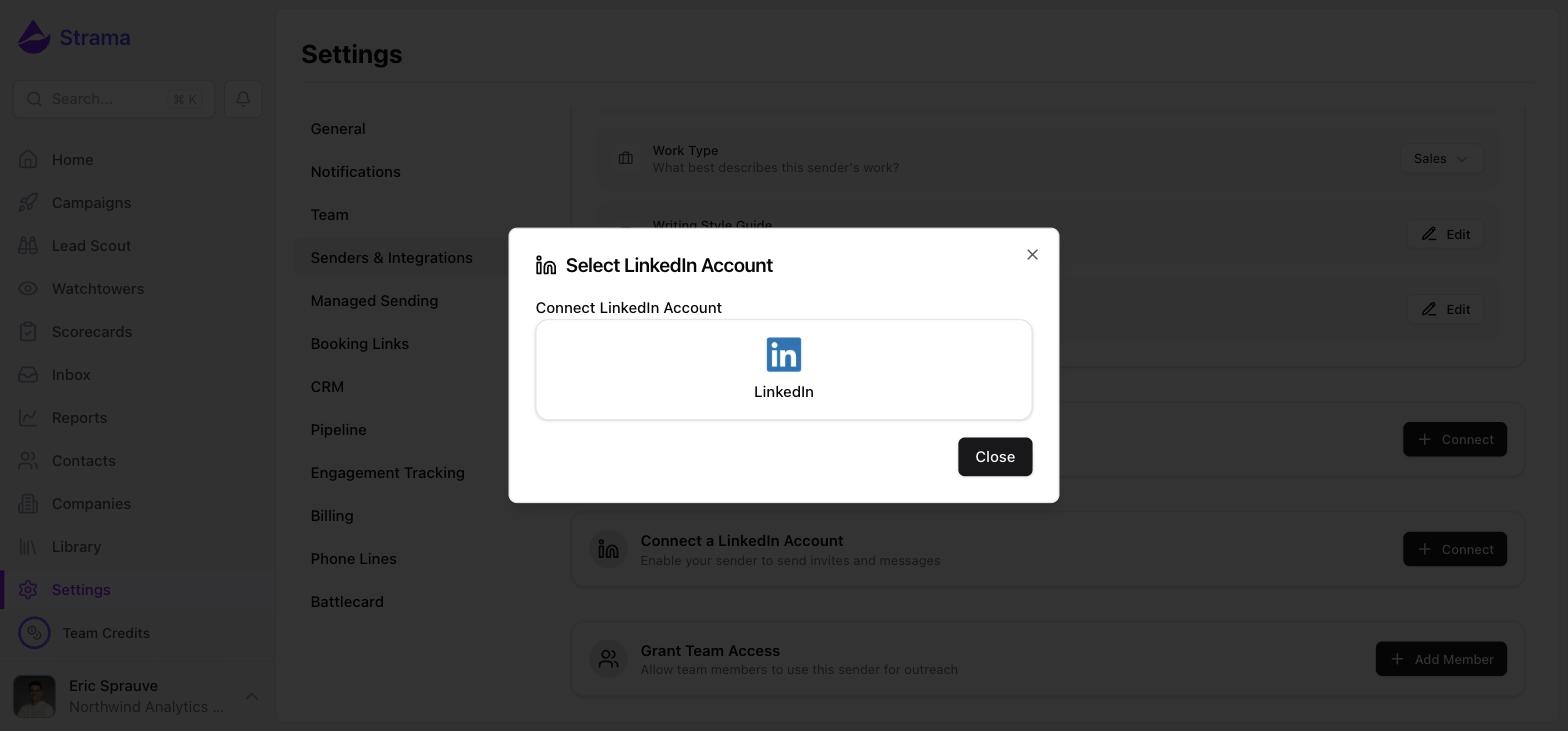
Sign-in happens on a secured connection page, not inside Strama. Your password and two-factor codes go to LinkedIn, and Strama only receives an authorized session it can send from.
Note: If nothing opens when you click the LinkedIn tile, your browser's popup blocker is the usual culprit. Allow popups for strama.ai and try again.
What sequences send on LinkedIn
Sequences can include three LinkedIn step types:
- LinkedIn Invite is a connection request. By default invites go out blank, with no note attached. If you want one, turn on Generate invite message in the step editor and Strama writes a short personalized note (under 250 characters) for each lead.
- LinkedIn Message is a direct message, sent only after the lead accepts your invite. Message steps wait quietly for the acceptance; if a lead accepts weeks later, the message goes out shortly after they do.
- LinkedIn Profile Visit views the lead's profile ahead of your outreach, so your name appears in their notifications before the invite arrives.
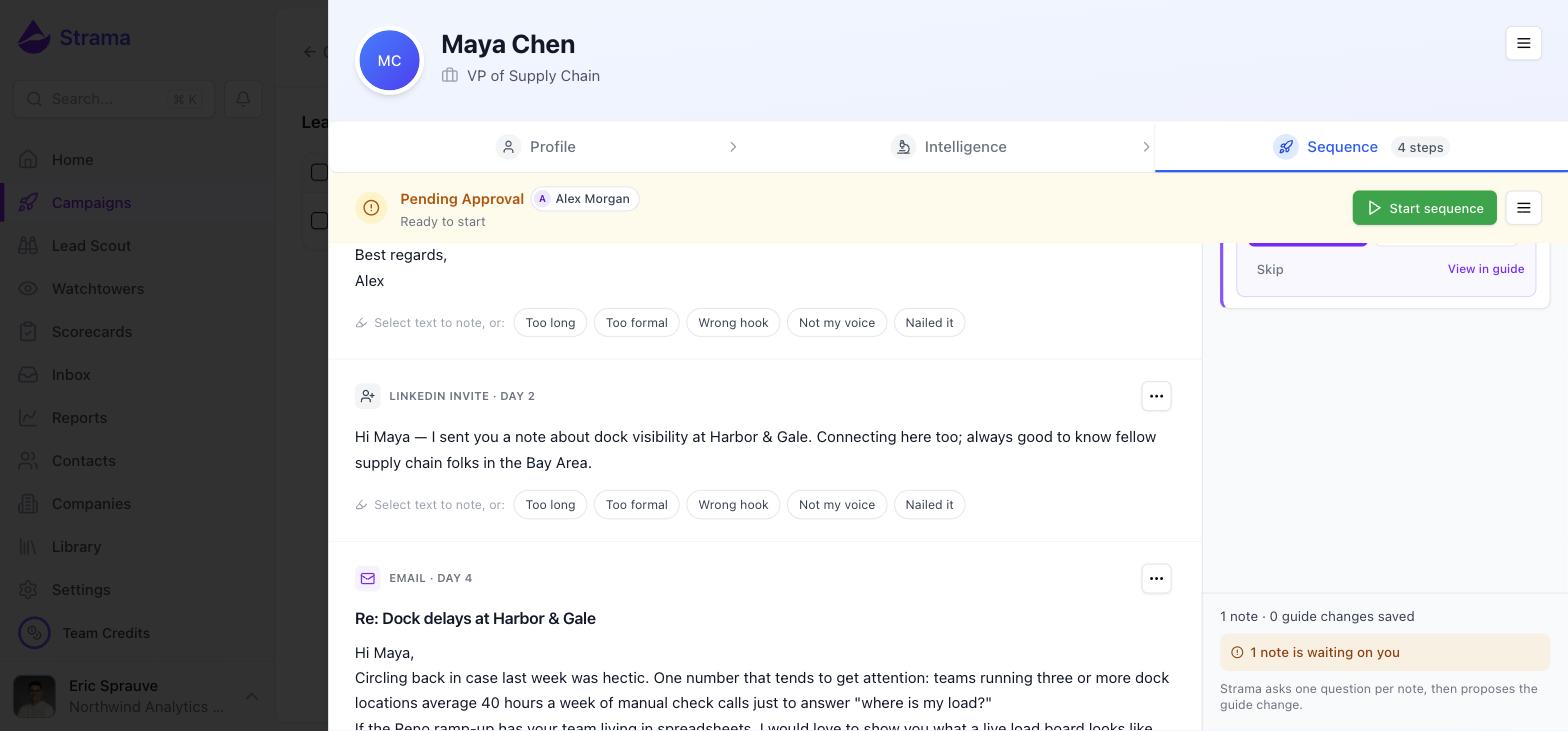
Everything is sent as a regular direct message from your own account. Strama does not send InMail, and a sequence can contain at most one invite step.
Note: Acceptances are detected automatically. Strama listens for new connections in near real time and double-checks with a daily sync, so you never need to mark an invite accepted yourself.
Daily limits
Every LinkedIn account has its own per-day caps, separate from email limits:
| Action | Default per day | Maximum |
|---|---|---|
| Messages | 25 | 50 |
| Invites | 5, or 20 on a paid LinkedIn plan | 35 |
| Profile visits | 30 | 50 |
To change them, open the sender's LinkedIn card and click Edit next to the usage counters. The Set Daily Usage Limits dialog warns you when a value goes above what is generally safe: more than 30 messages or 40 profile visits per day can trigger account flags, and so can more than 5 invites per day on a new or low-activity account.
Limits reset at midnight in your own timezone. When a sequence hits a cap, nothing fails: the remaining steps simply wait their turn and go out the next day. Replies you send yourself from the Inbox do not count against these limits.
How Strama protects your account
The most common question before connecting is whether automation puts the account at risk. Strama's LinkedIn sending is built to look like a person at a desk:
- Actions happen between 9am and 5pm in your own timezone, only on the days your sender's schedule allows.
- Each account performs one action at a time, rotating between invites, profile visits, and messages.
- There is a randomized pause between actions, from half a minute to a few minutes depending on the action.
- After a handful of actions in a row, the account takes a 5 to 10 minute break.
On top of the pacing, the default limits are deliberately conservative. If your LinkedIn account is new or has been quiet for a while, keep invites at the default for a few weeks before raising them.
Warning: Avoid running another LinkedIn automation tool on the same account alongside Strama. Strama paces its own activity carefully, but it cannot see or account for the volume another tool adds on top.
When the connection drops
LinkedIn sessions expire from time to time, usually after a password change, a security checkpoint, or a long stretch of inactivity. When that happens:
- Running sequences are not cancelled, and LinkedIn steps are not lost. They hold their place and resume automatically once you reconnect.
- Email keeps sending. The email steps in those same sequences continue on schedule throughout.
- New sequences that include a LinkedIn channel will not start until the account is reconnected. The run dialog flags this and offers to either connect the account or remove the LinkedIn channel.
You will know it happened from the dashboard, which shows a banner that the sender is disconnected with a Reconnect button, and from the sender's LinkedIn card in settings, where the pill turns red and reads Disconnected.
To fix it, click Reconnect on the LinkedIn card and sign in again in the popup. Reconnecting restores the same account with its limits, history, and sender attachment intact; there is no need to remove anything first.
If connecting fails
If the sign-in window errors out or never finishes:
- Check your popup blocker. If no window opened at all, allow popups for strama.ai and click the LinkedIn tile again.
- Complete any security check. LinkedIn sometimes challenges a sign-in from a new location with a verification code or an approval in the LinkedIn mobile app. Finish it inside the popup; the connection completes right after.
- Retry once. Most connections finish within seconds of signing in. If the window is still working after five minutes it gives up and says so; close it and click Connect again.
- Remove and re-add as a last resort. In the Select LinkedIn Account dialog, click Manage Accounts, remove the stuck account, and connect fresh. If it still fails, contact support.
Sales Navigator and paid plans
You do not need Sales Navigator or LinkedIn Premium to use LinkedIn in Strama. Strama detects your plan automatically when you connect:
- Paid accounts start with a higher invite default: 20 per day instead of 5.
- Sales Navigator does not raise the message or invite caps. What it does unlock is a much larger daily budget for the profile lookups Strama makes during research and enrichment, plus profile-view Watchtowers, since free accounts cannot see who viewed their profile.
- If you buy Sales Navigator after connecting, click Refresh on the sender's LinkedIn card so Strama picks up the plan change.
FAQ
Will connecting my LinkedIn account get me blocked or flagged?
Strama is designed to keep you well under LinkedIn's radar: conservative default limits, working-hours-only activity, randomized pacing, and regular breaks. The realistic risks are raising your daily limits aggressively on a young account and stacking a second automation tool on the same account. Avoid both and stay near the defaults, especially in the first weeks.
Why do my new reps get an error when connecting their LinkedIn accounts?
The two usual causes are a popup blocker swallowing the sign-in window and a LinkedIn security checkpoint that was not completed inside the popup. LinkedIn challenges sign-ins from new locations more aggressively, so it helps to sign in to linkedin.com in the same browser first, then connect in Strama.
How many connection requests can I safely send per day without Sales Navigator?
The default of 5 per day is safe for any account. An established, active account can usually be raised gradually toward 20 to 30 per day; the hard maximum in Strama is 35. If the account is new or has been dormant, stay at the default for a few weeks first.
Why is a sequence not sending its LinkedIn messages?
LinkedIn message steps only send after the lead accepts your connection invite, so most of the time the sequence is simply waiting on the lead. Beyond that, check that the account still shows Connected on the sender's LinkedIn card, and whether the daily message limit is already used up for the day; queued steps go out the next day.
What happens to my sequence if my LinkedIn connection drops?
LinkedIn steps pause and hold their place while email steps keep sending on schedule. Nothing is cancelled or lost. Click Reconnect on the sender's LinkedIn card and the paused steps resume where they left off.