Making the AI sound like you
Teach Strama your voice by leaving feedback directly on drafted messages. Notes become style guide rules, and a rewrite applies them to the whole sequence.
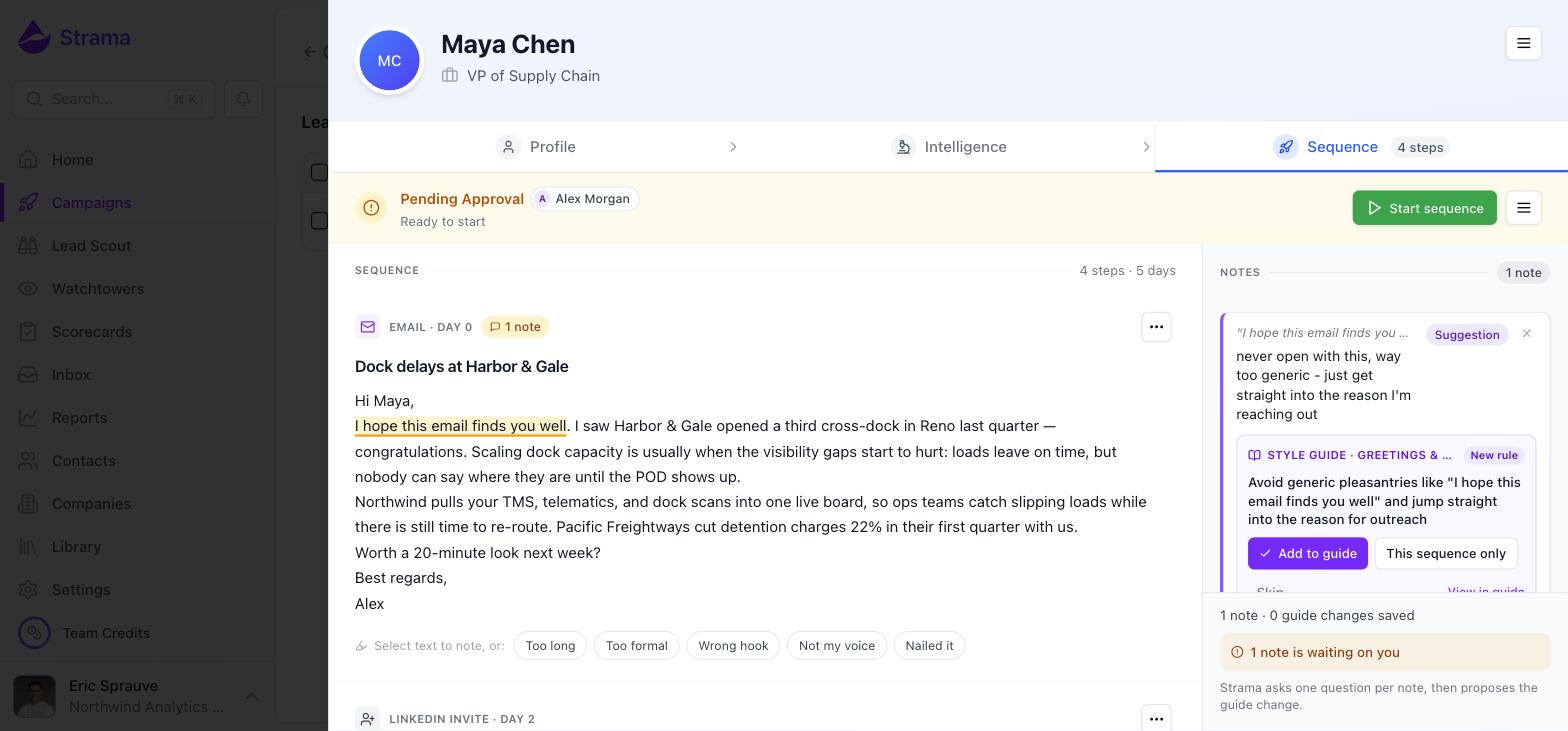
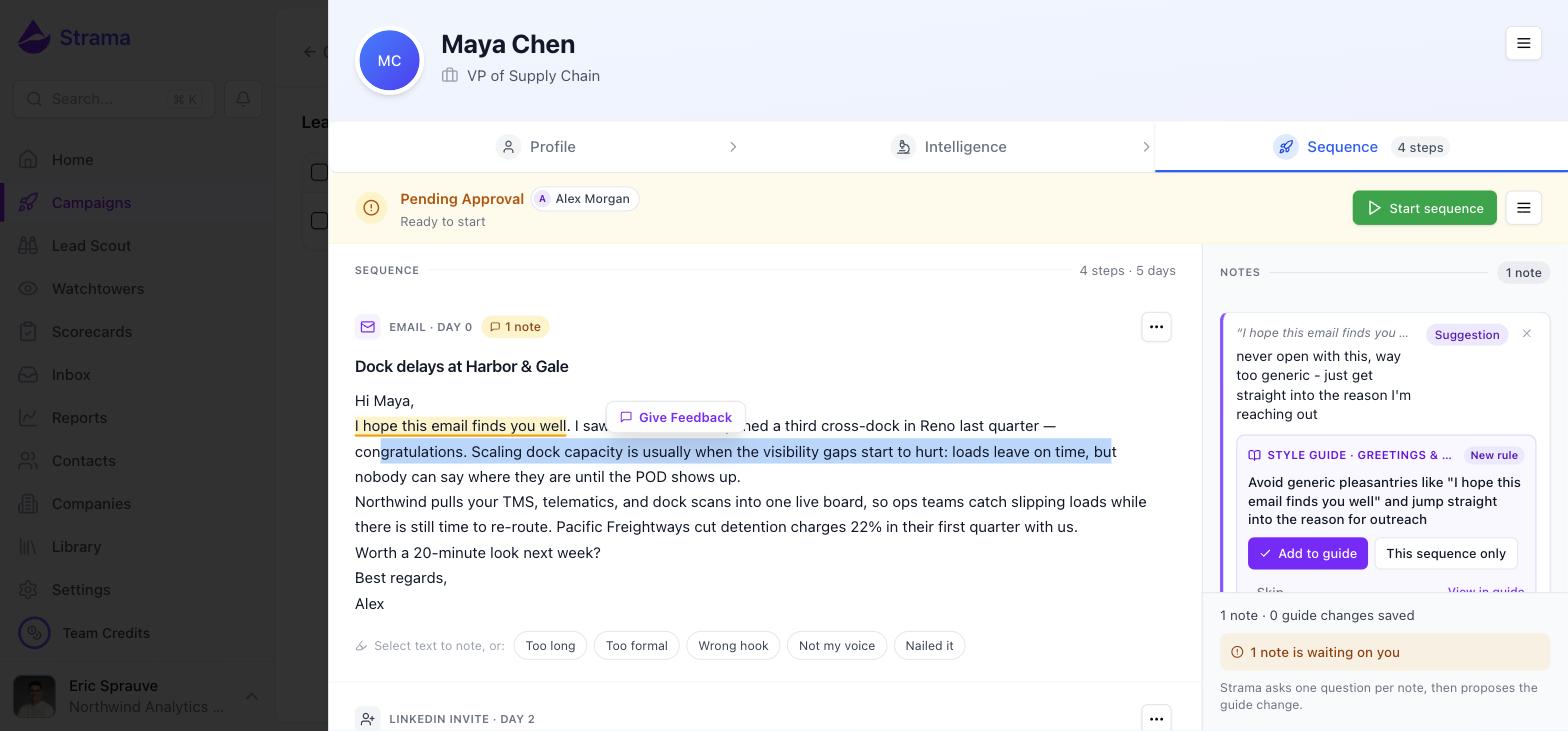
You make Strama sound like you by leaving feedback directly on drafted messages: select the text that reads wrong, click the purple Give Feedback button, and say what is off in plain language. Strama turns each note into a proposed writing rule, saves the rules you approve to your style guide, and rewrites the sequence with everything applied. Each round of feedback carries forward to every future sequence, so the drafts keep getting closer to how you actually write.
This loop happens on a drafted sequence, while it is still waiting for your approval. Open a campaign, pick a contact, and the Sequence tab shows the draft. You can leave notes on emails, LinkedIn messages, and LinkedIn invites.
The feedback loop, start to finish
- Select the text that bothers you. Highlight a phrase, a sentence, or a whole paragraph in any drafted message. The purple Give Feedback button appears above the selection. If it does not appear, reselect: the selection has to stay inside a single message's subject or body, so a selection that spills into the surrounding page will not register.
- Say what is wrong in plain language. You do not need to write a careful prompt. Word-vomit is fine ("way too stiff, I would never open with this, sounds like a robot"). Strama distills it into a usable rule. Quick chips cover the common cases in one click: Cut this, Too jargon-y, Not my voice, Wrong claim. You can also react to a whole message with chips like Too long, Too formal, or Nailed it. Positive feedback works too: telling Strama what to keep is as useful as telling it what to cut.
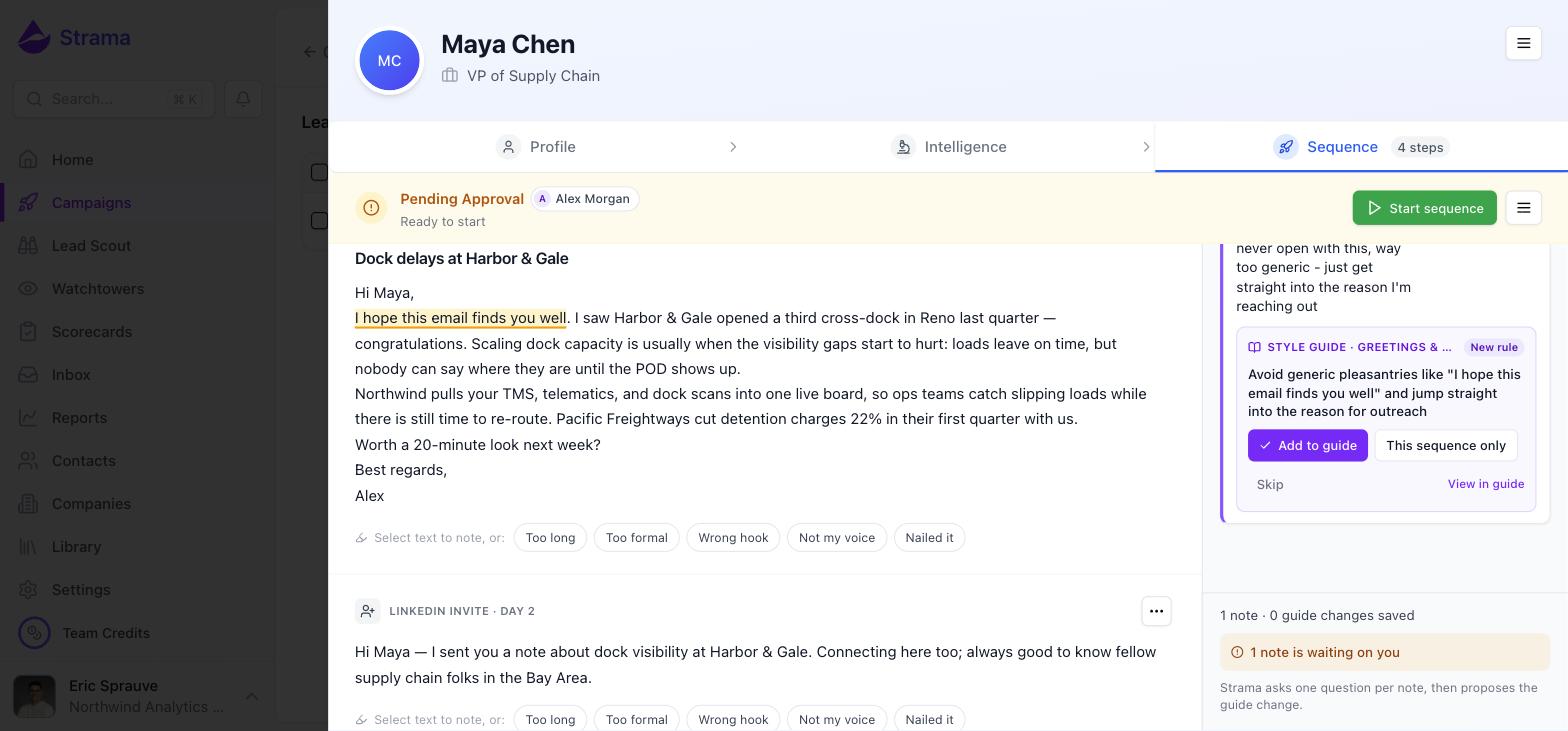
- Answer at most one question. Strama reads each note and either proposes a style guide change right away or asks a single clarifying question with tap-to-answer options. Answer it, reply in your own words, or skip it and fix the text yourself.
- Decide where the rule lands. Each proposal shows the exact rule and the style guide section it would go in. Choose Add to guide, This sequence only, or Skip.
- Rewrite the sequence. Once every note is settled, click Rewrite sequence. Strama regenerates every step with your saved guide rules and your sequence-only notes applied, and you review the new draft.
Where each decision lands
- Add to guide writes the rule into your writing style guide immediately, before the rewrite even runs. It applies to this sequence and to every sequence generated for you from then on. Every note card keeps an Undo if you change your mind.
- This sequence only applies the rule to this rewrite and saves nothing. Use it for feedback that is about this prospect or this campaign, not about your voice.
- Skip dismisses the note without changing anything.
Note: Only the sender's owner can save changes to the style guide. Teammates with access to the sequence can leave notes and apply them to the current sequence, but the guide belongs to the person whose name is on the messages.
What a rewrite does
Rewrite sequence regenerates every step of the sequence from scratch with your feedback baked in. Three things to know before you click it:
- It replaces the entire draft, including any edits you made by hand. Direct edits are not preserved through a rewrite.
- Your notes are cleared afterward. Rules you added to the guide are already saved, and sequence-only notes were applied to the new draft, so you start the next review round with a clean slate.
- The first two rewrites of each sequence are free. After that, a rewrite costs 5 credits, the same as generating the sequence in the first place. See What costs credits for the full rate card.
Tip: Read the whole sequence and leave every note before rewriting. A rewrite regenerates all steps at once, so one pass with eight notes teaches Strama more, and spends fewer rewrites, than eight passes with one note each.
What persists to future sequences
Everything you add to the guide persists: facts to stop claiming, phrases to avoid, greetings and sign-offs, message length, tone, and conditional rules like "if the contact is an engineer, skip the ROI framing." The style guide is per sender, so your rules never bleed into a teammate's messages.
A guide rule applies to everything you send, email and LinkedIn alike, unless the rule names a channel. If LinkedIn needs different treatment, say so in the note: "keep LinkedIn messages under 40 words" becomes a rule that only shapes LinkedIn copy.
What does not persist: direct edits and "this sequence only" decisions. They fix the draft in front of you and teach Strama nothing.
Warning: If you find yourself fixing the same thing by hand in sequence after sequence, stop and make it a note instead. Hand edits never reach the style guide, so the problem will keep coming back until you tell Strama about it once.
Three sizes of fix
Match the fix to the size of the problem:
- One message is slightly off. Edit the text directly, or open the step's menu and choose Revise with AI to describe the change and review a diff before accepting. Both change this sequence only.
- The sequence does not sound like you. Leave notes and rewrite, as above.
- The same problem shows up in every sequence. That is a style guide problem. Add the rule from a note proposal, or edit the guide directly: open the sequence menu and choose View Style Guide, or go to Settings, open your sender profile, and edit the Writing Style Guide there. The guide is plain text you can safely edit by hand.
How many rounds it takes
Expect 3 to 8 sequences' worth of feedback before drafts consistently sound like you. The first couple of rounds catch the big things: openers you would never use, claims that are off, a register that is too formal. Later rounds are about smaller habits like sign-offs and pet phrases. After that, most drafts need only minor touch-ups, and an occasional note keeps the guide current as your messaging evolves.
FAQ
Does my feedback apply to future sequences, or only the current one?
Anything you save with Add to guide applies to every sequence generated for you from that point on. "This sequence only" decisions and direct edits apply to the current draft and are not remembered.
How do I tell the AI to stop using specific words or phrases?
Select the phrase in a draft, click Give Feedback, and say "never use this phrase" (or what to say instead). Approve the proposed rule with Add to guide and it is banned from every future draft.
Why do my LinkedIn messages sound more AI-like than my emails?
The feedback loop works on LinkedIn drafts too, but people tend to review only their emails, so the guide fills up with email rules. Leave notes on the LinkedIn steps specifically, and name the channel in the feedback ("LinkedIn messages should be two sentences, no greeting") so the rule targets LinkedIn copy.
Can I make every email shorter and drop phrasing I would never use?
Yes. "Shorter" works as a guide rule ("keep emails under 90 words"), and so do phrase bans ("never open with 'thanks so much'"). Both are one note away from being permanent.
Does rewriting a sequence cost credits?
Each sequence includes two free rewrites. After those, a rewrite costs 5 credits, the same as the original generation. Details in What costs credits.
Can a teammate's feedback change my style guide?
No. Anyone who can edit the sequence can leave notes and apply them to that sequence, but only the sender's owner can save a rule to the guide.
Can I leave feedback on a sequence that is already running?
No. Notes live on drafts that are waiting for approval. Once a sequence is running, edit your style guide directly instead; the changes shape every sequence generated after that. Messages already generated do not change.