Connecting Strama to HubSpot
Sync contacts, companies, and outreach activity to your HubSpot portal, and import HubSpot lists into Strama. The integration is optional and takes a few minutes to set up.
Connecting HubSpot is optional — nothing in Strama requires a CRM. Connect it when you want the work your team does in Strama to land in your portal automatically: contacts and companies are created or matched as Strama works them, and the emails and LinkedIn messages Strama sends are logged on the right contact's timeline. Strama acts as the sequencing hub; HubSpot stays your system of record.
What syncs
Five kinds of records move between the two systems. The last one, call tasks, is off until you turn it on.
| Strama | Where it lands in HubSpot |
|---|---|
| Contacts | Contacts, matched by email or LinkedIn URL before anything is created |
| Companies | Companies, matched by website domain (or name) before anything is created |
| Emails | Email activity on the contact's timeline |
| LinkedIn messages | Logged activity on the timeline, typed as LinkedIn messages |
| Call steps | Tasks (type Call), created the morning the step is due — opt-in |
Strama never reads or writes deals, tickets, or marketing email data — it doesn't ask for permission to.
Outbound emails are logged with a [STRAMA] prefix on the subject, and outbound LinkedIn messages with [STRAMA] at the start of the logged message, so you can always tell Strama activity apart from mail HubSpot logged natively. Inbound replies keep their original subject. Call tasks use a title-case [Strama] prefix in the task subject.
Note: Connecting is not a backfill. Strama does not push your existing database into HubSpot on connect — records queue as your team works them (contacts as they're created or enriched, messages as they're sent or received), and only messages from after the connection date are logged. If you connect and HubSpot looks quiet, that's expected until your team does something.
Syncing runs automatically about every five minutes, handling up to 100 records per type each cycle, so a large batch trickles in over a few cycles. The Sync now button at the bottom of the CRM settings page pushes anything pending immediately.
Connect your portal
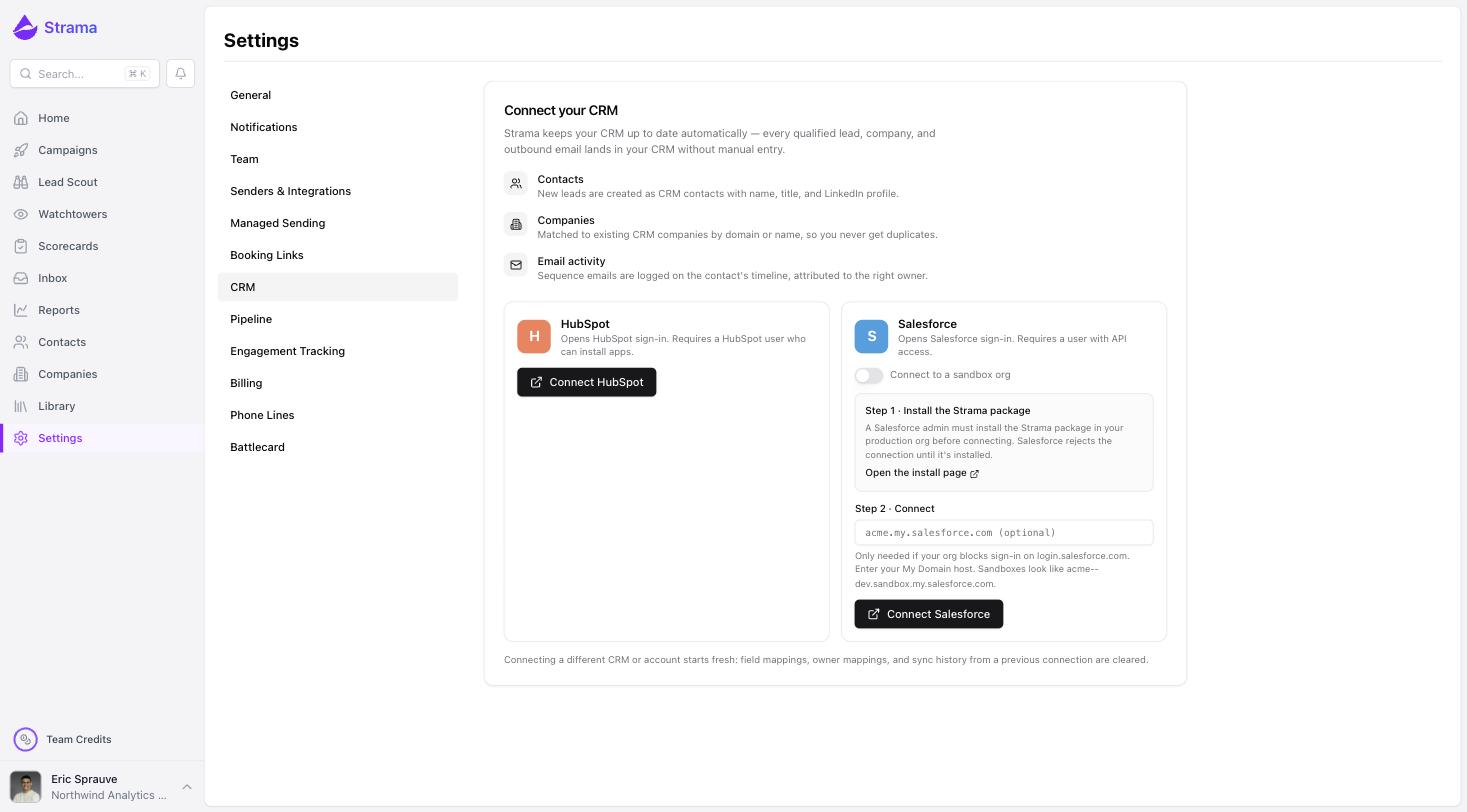
Go to Settings → CRM and click Connect HubSpot. A HubSpot sign-in window opens: choose the portal you want to connect, review the permissions, and approve. You're returned to Strama with the connection live — the card shows your portal ID, who connected it, and counts of what has synced.
Who can do this:
- In Strama: the team Owner. Connecting, disconnecting, and every sync setting are Owner-only; other members see the CRM page read-only.
- In HubSpot: a user who can install apps (Super Admins have this by default) with view and edit access on contacts and companies.
A team can have one CRM connection — HubSpot or Salesforce, not both.
Strama asks HubSpot for permission to read and write contacts and companies (for matching and creating records), read owners (for attribution), and read your property schemas (to find your LinkedIn URL properties). One permission is optional: reading your lists, which powers importing HubSpot lists into Strama. You can decline it and everything else still works — you can grant it later by re-authenticating.
Choose how records are matched and updated
The Sync behavior card controls what Strama is allowed to touch. Changes save automatically and apply to the whole team.
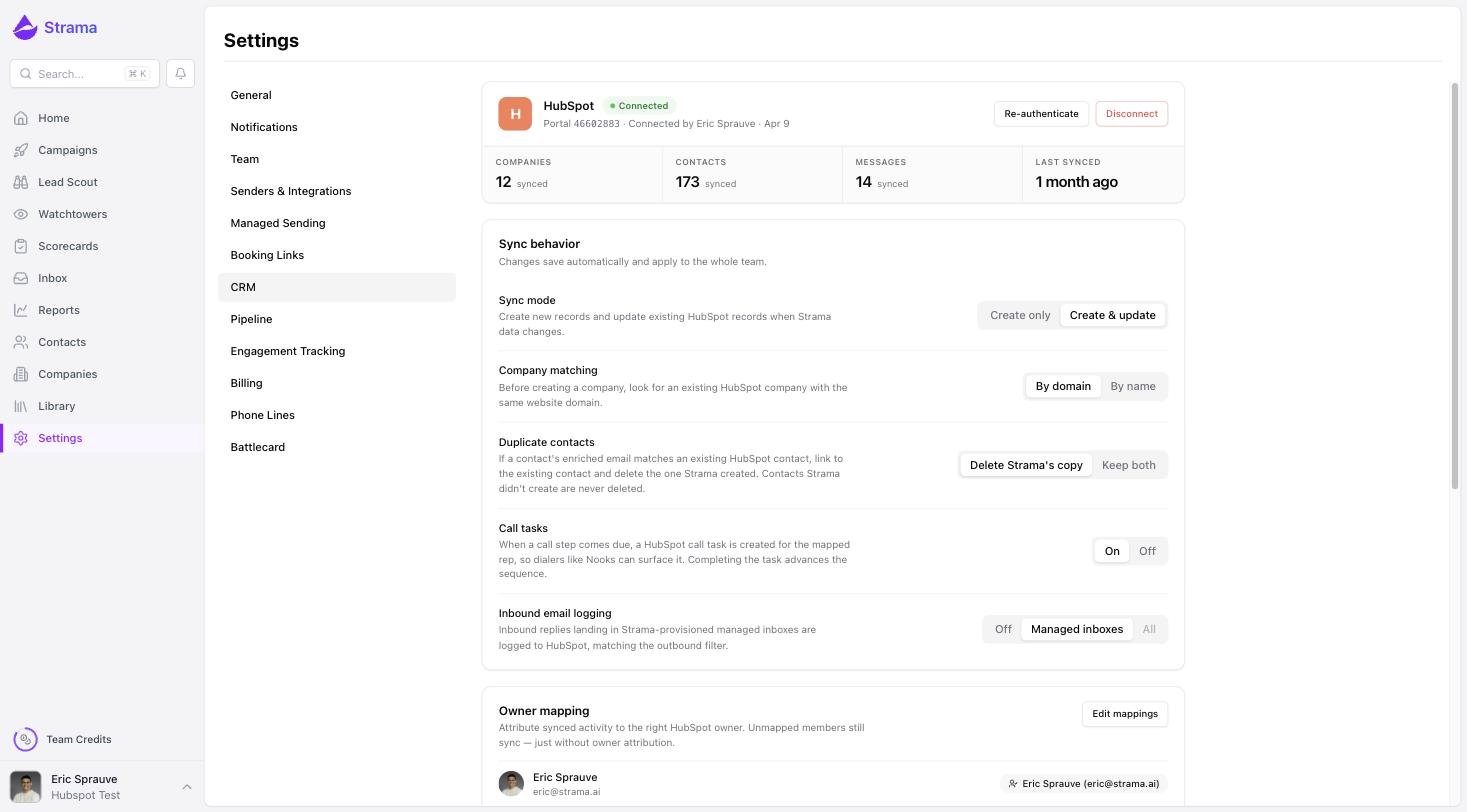
Sync mode — Create only (the default) or Create & update. On Create only, Strama creates records that don't exist in your portal and never modifies ones that do: a matched contact or company is adopted exactly as it is, your fields untouched. On Create & update, Strama also pushes its values onto matched records. Either way, a company's domain is never overwritten — it's the field that defines which company the record is.
Company matching — By domain (the default) or By name. Domain matching strips www. and also checks the corporate email domains of the company's contacts, so a portal company filed under a different subdomain still matches — a match found that way must also have a similar company name before it's accepted.
Duplicate contacts — Delete Strama's copy (the default) or Keep both. Occasionally a contact syncs before enrichment finds their email, and the email turns out to belong to a contact already in your portal. Strama re-points to the existing record and moves any activity it logged onto it; this setting decides whether the extra record Strama created is archived or kept. Strama only ever removes records it created itself.
Call tasks — Off (the default) or On. Covered below. The toggle stays disabled until at least one team member is mapped to a HubSpot owner.
Inbound email logging — Off, Managed inboxes (the default), or All. Controls whether replies landing in Strama are logged to HubSpot. All isn't available for HubSpot yet.
The default exists to prevent double-logging: HubSpot already logs mail from your own connected mailboxes, so Strama only logs mail through the inboxes it provisioned for you (managed inboxes) — outbound and, with the default setting, inbound. If you ever see a message twice on a timeline, the copy without the [STRAMA] prefix is HubSpot's own.
Map owners and check field mappings
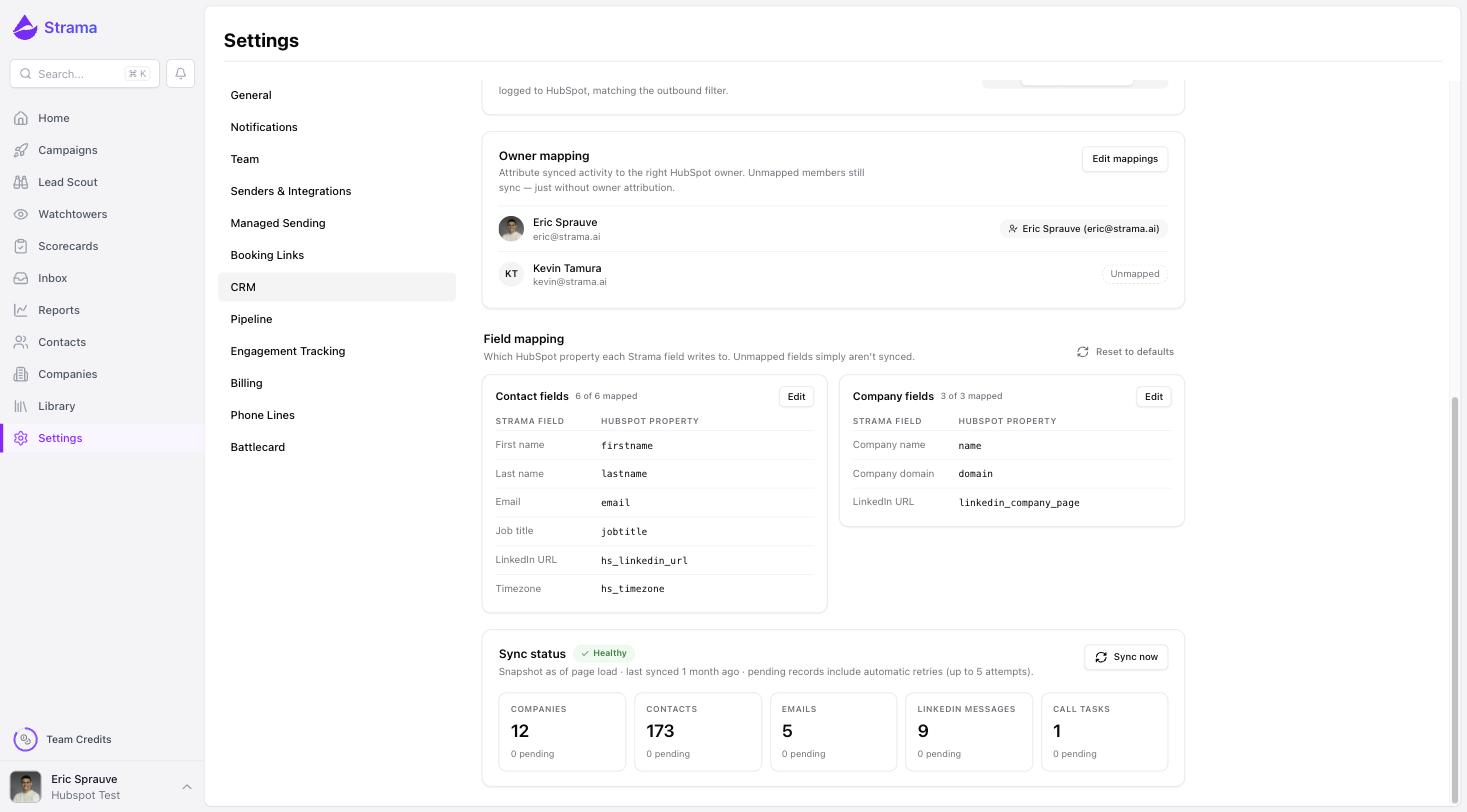
Owner mapping pairs each Strama team member with a HubSpot owner so logged activity rolls up under the right rep in HubSpot reporting. It's optional — unmapped members still sync, just without owner attribution — but do it before you start sending if attribution matters, and it's required before call tasks can be turned on.
Field mapping shows which HubSpot property each Strama field writes to. The defaults cover first name, last name, email, job title, and timezone for contacts, plus company name and domain. For LinkedIn URLs, Strama maps to a LinkedIn property that already exists in your portal (it checks linkedin_url and hs_linkedin_url for contacts, and linkedin_company_page, linkedin_url, and hs_linkedin_url for companies) — it never creates properties in your portal. If none exists, that field simply isn't synced.
Warning: Edited property names are free text and aren't validated against your portal, so a typo fails silently at sync time instead of warning you. Copy the internal property name from HubSpot's Settings → Properties, or use Reset to defaults to restore the standard mappings.
Import contacts from a HubSpot list
You can pull contacts the other way, too. In a campaign, choose Add → Add Leads → Import from CRM, pick a HubSpot list (newer portals call them segments), and Strama shows its members with everyone importable pre-selected.
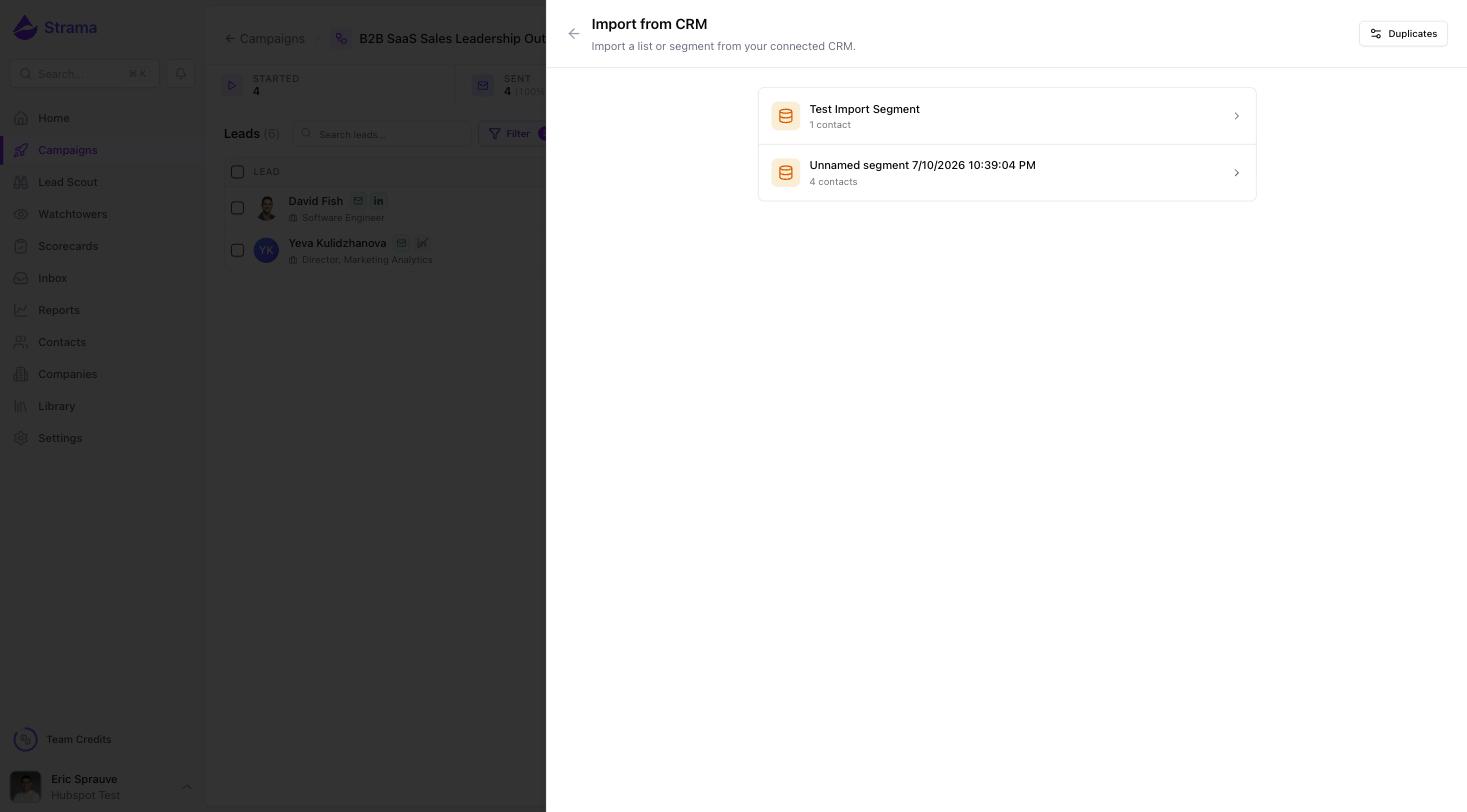
Worth knowing before you build the list in HubSpot:
- Only contact lists appear — company or deal lists won't show up.
- A contact needs a first and last name to be importable; rows missing one show a "Missing name" badge and can't be selected.
- Members load 100 at a time — click Load more to keep going through a big list.
- Importing from HubSpot is free: no credits are charged, and any email, phone, company website, or LinkedIn URL already on the HubSpot record comes along, which also saves enrichment credits later.
- Imported records are linked to their HubSpot originals, so outbound sync won't push duplicates back into your portal.
If you see Enable list import instead of your lists, the optional lists permission wasn't granted at connect time — an Owner can grant it with one Re-authenticate from CRM settings.
Companies can be imported too: in Add Companies, Import from CRM searches your portal by company name.
Tip: Importing a big backlog out of HubSpot? Build one list or segment in HubSpot containing the whole backlog, then import it here — that's the supported bulk path.
Call steps as HubSpot tasks
With Call tasks on, each Call step in a running sequence becomes a HubSpot task the morning it's due — created at 8:00 am in the sender's timezone, checked about every 15 minutes — so reps can work calls from HubSpot's task queue or a dialer that pulls HubSpot tasks, like Nooks. The task carries a [Strama] subject with the campaign and step, the step's talk track as the body, the contact association, and the mapped owner so it lands in the right rep's queue.
It's a two-way link: completing the task in HubSpot (including when a dialer completes it) marks the Call step complete in Strama and schedules the sequence's next step. If the prospect replies or unsubscribes, or the sequence is paused or deleted, Strama deletes the task so nobody calls someone who already answered.
Three things a task needs before it can be created: the contact has synced to HubSpot, the contact has a phone number, and the sender is mapped to a HubSpot owner. Steps waiting on one of these show as pending on the Call Tasks tile in Sync status and are created automatically once the condition resolves.
Warning: Don't delete a Strama task by hand in HubSpot. The Call step stays open in the sequence and the task is not recreated, so the sequence stalls on that step. Complete the task instead, or pause the sequence or remove the step in Strama and let it clean up the task itself.
Check that it's working
Three places tell you whether data is flowing:
- The health strip on the connection card: counts of companies, contacts, and messages synced, plus the last sync time.
- The Sync status card: per-object tiles, pending counts, and a table of failed records with HubSpot's own error message and per-row Retry. Failed records are retried automatically up to 5 times before landing there.
- HubSpot itself: open a contact your team worked recently — Strama's messages appear on the timeline with the
[STRAMA]prefix, associated to the contact and company.
If authorization expires, a banner appears ("Sync is paused — HubSpot authorization expired") and records queue rather than being dropped. The team Owner clicks Re-authenticate and signs into the same portal; the queue drains once the connection is restored.
Disconnecting
Settings → CRM → Disconnect stops syncing immediately. Nothing is deleted from HubSpot — records Strama created or updated stay exactly as they are — and your Strama data is untouched. Anything still queued or failed is dropped. Reconnecting the same portal picks up where you left off, with field mappings, owner mappings, and sync history intact; connecting a different portal or a different CRM starts fresh.
FAQ
Is the HubSpot integration required?
No. Strama works fully without a CRM. Connect HubSpot only if you want Strama's contacts, companies, and activity reflected in your portal automatically.
How are Strama-sent emails identified in HubSpot?
Every outbound email Strama logs has [STRAMA] at the start of the subject, and every outbound LinkedIn message has [STRAMA] at the start of the logged message body. Filter on that prefix to separate Strama activity from mail HubSpot logged natively. Inbound replies are not tagged.
How do I bulk import a backlog of contacts from HubSpot?
Build a list or segment in HubSpot containing the backlog, then use Add → Add Leads → Import from CRM in a campaign. Members load 100 at a time with Load more, contacts need a first and last name, and the import is free.
Will Strama create duplicates in my portal?
Strama matches before it creates: contacts by email (or by LinkedIn URL when there's no email yet), companies by website domain with a fallback across contact email domains. On the default Create only mode a matched record is adopted as-is and never modified. Mismatched data can still slip through — a portal contact stored under a different email address, or a LinkedIn URL stored in a different format (for example with a www. prefix), won't match and will be created as new. See How Strama matches contacts for the Strama-side rules.
Does syncing or importing cost credits?
No. CRM sync and CRM import are free in both directions. Importing from HubSpot can actually save credits, since emails, phones, and websites already on the HubSpot record come along instead of being enriched.
Can Strama read or update my deals?
No. Strama's HubSpot access covers contacts, companies, activity logging, owners, and (optionally) lists. It doesn't request access to deals, tickets, or marketing email data, so it cannot read or write them.