Connecting your email inbox
Two ways to get sending: connect your own Google or Microsoft inbox in a couple of clicks, or have Strama provision warmed inboxes on a lookalike domain when connecting your own is not an option.
Every email Strama sends goes out through a real mailbox. There is no shared sending server: messages come from your address, replies land in your inbox, and everything shows up in your sent folder. That is great for deliverability and trust, and it means the first step toward email outreach is getting at least one mailbox connected.
There are two ways to do that, and this article covers both: connecting an inbox you already own, and having Strama provision managed inboxes for you when connecting your own is not an option.
Signing in is not the same as connecting an inbox
These are two separate grants, and it is worth knowing the difference before talking to your IT team.
Signing in to Strama with Google or Microsoft requests basic identity only: your name and email address. Strama never sees or stores a password, and signing in gives Strama no access to your mail. If your company restricts OAuth sign-ins entirely, you can also sign in with an emailed magic link.
Mailbox access is requested only when you explicitly connect an inbox, in a separate consent step. So SSO restrictions do not block you from creating an account and exploring the product; they only come into play when you try to connect a mailbox, which is exactly the case the rest of this article deals with.
Connecting your own inbox
Strama connects Gmail and Google Workspace inboxes, and Outlook and Microsoft 365 inboxes. Inboxes belong to a sender (the person the outreach is written as), so the connection lives on the sender's page:
- Go to Settings, then Senders & Integrations.
- Pick the sender at the top of the page.
- Find the Connect an Inbox card and click Connect.
- Choose Google or Microsoft, then sign in with the mailbox you want to send from.
- Approve every permission on the consent screen.
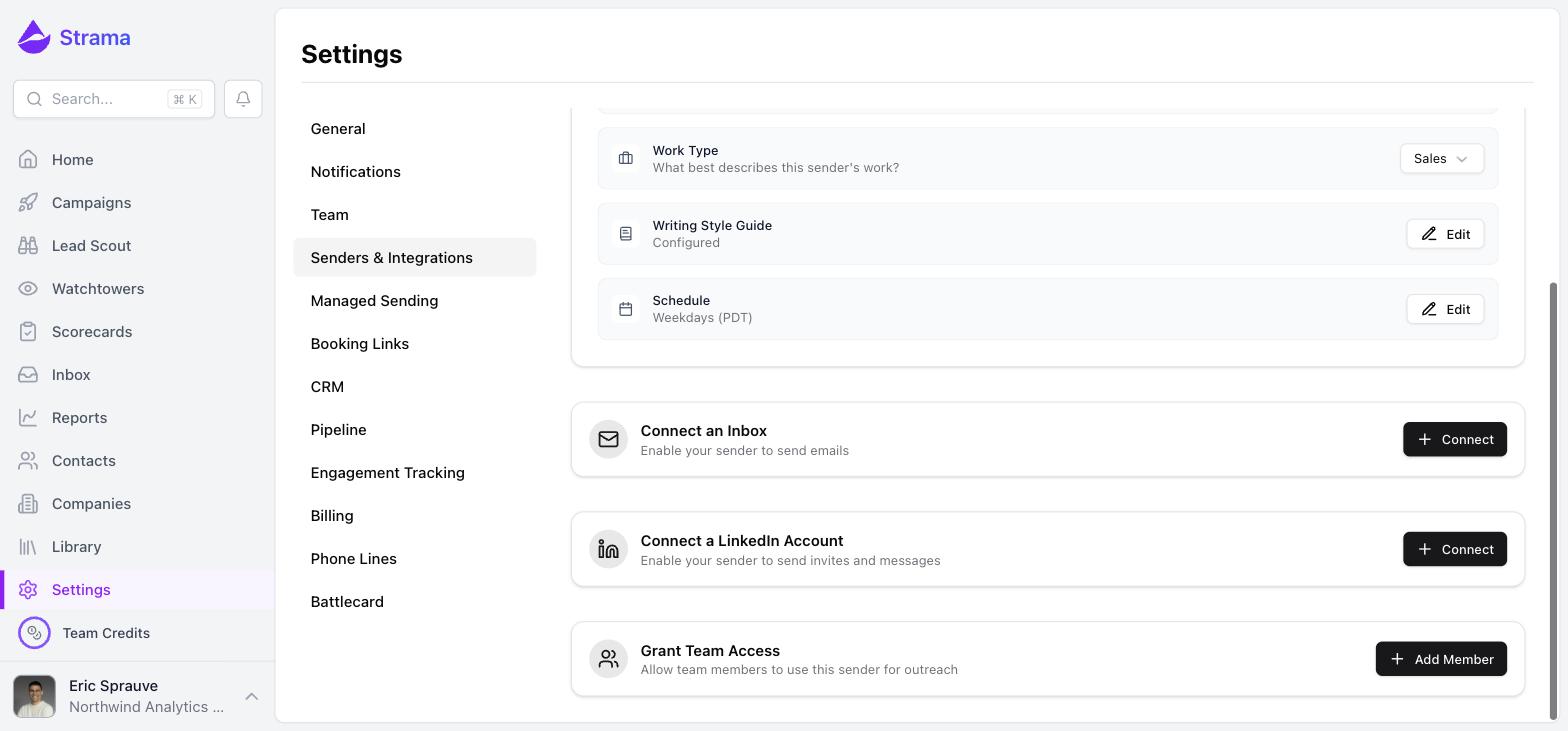
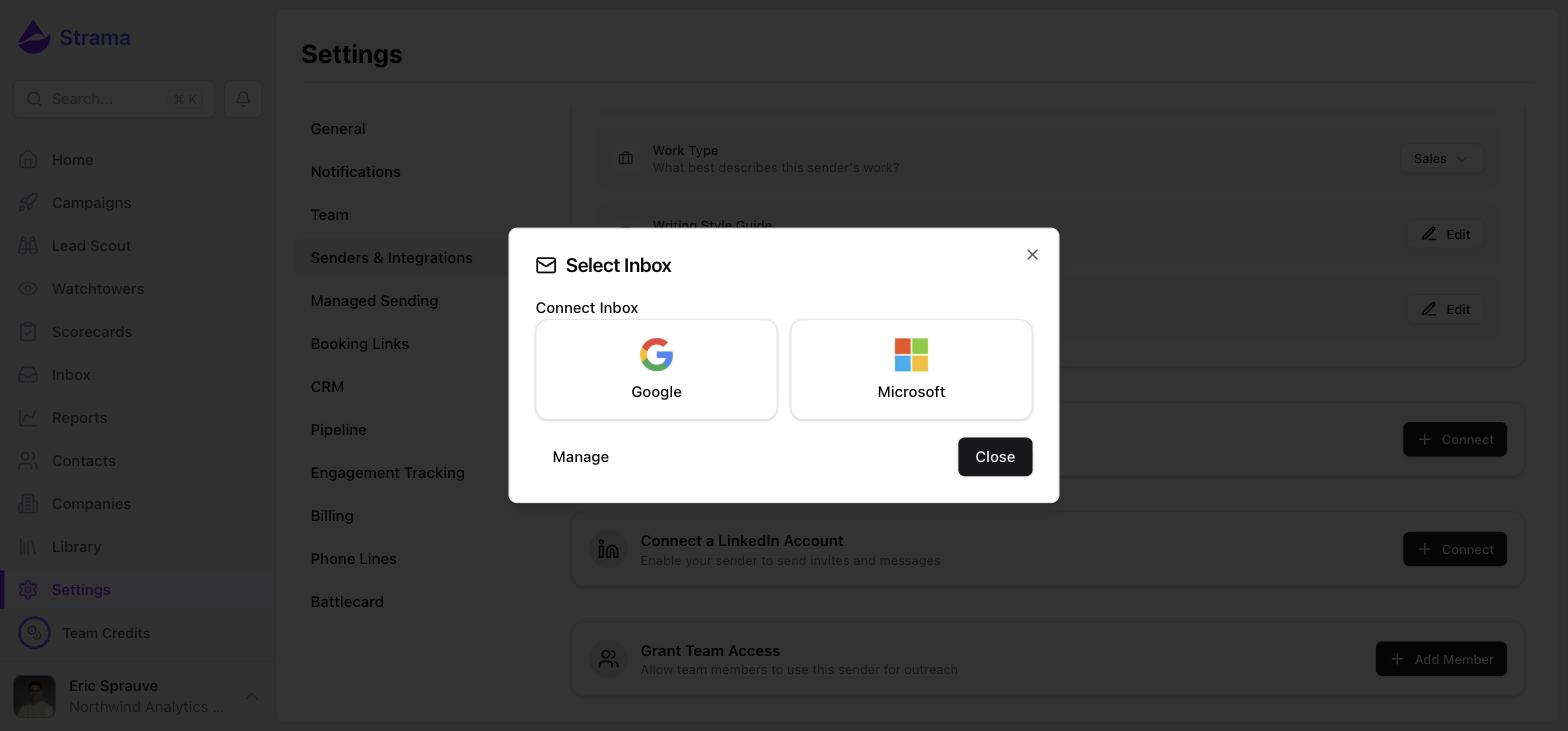
Step 5 matters. The consent screen lists each permission with its own checkbox, and Strama needs all of them. If any box is left unchecked, the connection is not created at all (there is no half-connected state); you will see a message asking you to reconnect and grant everything. What you are granting:
- Read and send mail from that mailbox, so Strama can send your sequence steps, thread follow-ups correctly, and detect replies and bounces
- Calendar events, so booked meetings can be created and tracked
- Basic profile info (your name and email address)
You can disconnect at any time from the same settings page, or revoke Strama's access from your Google or Microsoft account security page.
A freshly connected inbox starts with a daily limit of 20 emails. You can change it with the Edit Limit button on the inbox (up to 100 per day), but Strama will warn you above 30 per day unless the inbox is enrolled in a warm-up service, because cold volume beyond that on an unwarmed inbox hurts deliverability.
Tip: If the mailbox has verified alias addresses, the Send from button on the connected inbox lets you send outreach from an alias instead of the primary address. The alias must already be set up and verified in Gmail or Microsoft 365 first, and Microsoft tenants additionally need the admin-level "send from alias" setting turned on.
When IT says no
"My IT team will not approve the connection" comes up a lot, and there are two workable paths.
Path one: ask IT to approve the Strama app. Google Workspace and Microsoft 365 admins can allow-list specific third-party apps for their organization. Once Strama is on the approved list, the connection flow above works normally, and the consent screen may even note that your admin has already approved the access. This is the best outcome: you send from your real address on your real domain. If you connect a Google account and see an error that the Gmail API is not enabled, that is the same situation, and your Workspace admin is the person to talk to.
Path two: let Strama provision inboxes for you. If IT will not budge (or you would rather keep cold outreach off your main domain entirely), Strama can set up managed inboxes that need nothing from your IT team. That is the next section.
Managed inboxes on a lookalike domain
Managed sending lives under Settings, then Managed Sending, and is part of a subscription plan (separate from credits, which pay for AI work, not sending).
Here is how it works:
- Find domains. The Find Domains wizard reads your website, generates on-brand lookalike domain names (think
trybrightline.comfor a company called Brightline), and live-checks availability. You pick the ones you like; you can also type in your own ideas and check them. Only.comdomains are used. - Strama registers and configures them. Registration usually completes within an hour, DNS setup and propagation within a few hours. You can watch the status on the page.
- The domain forwards to your real site. Anyone who types the lookalike domain into a browser is redirected to your actual website, so a curious prospect always ends up in the right place. You set a default forwarding URL for the team and can override it per domain.
- Add inboxes. Each domain supports up to 3 inboxes. You choose the name and address for each one, and Strama sets up the mailbox and begins warming it automatically.
The honest part: warm-up takes about a month. A new inbox spends roughly its first three weeks sending only warm-up traffic, with no cold email at all. Cold volume is then introduced gradually and reaches full capacity around day 35. Strama manages the daily limits through the whole ramp; you never set them by hand on a managed inbox.
At maturity, daily cold volume depends on the sending strategy you choose per inbox: Conservative sends up to 10 cold emails per day, Balanced up to 15, and Aggressive up to 20. Every managed inbox also gets continuous deliverability monitoring with a health score, and if health drops, Strama automatically cuts volume or pauses cold sending on that inbox until it recovers. Low per-inbox volume is by design; teams that need more volume add more inboxes and domains rather than pushing one address harder.
Note: If a launch date matters, start domain and inbox setup about a month ahead so warm-up finishes before your first campaign needs the volume.
Bringing an inbox you warmed somewhere else
If you already have warmed inboxes from another tool or provider, you can connect them like any other inbox, as long as they are Google or Microsoft mailboxes (there is no generic SMTP or IMAP option). Strama does not care where an inbox was warmed.
Two things to know. Strama's own warm-up machinery only manages Strama-provisioned inboxes, so if your external inboxes depend on a third-party warm-up service, keep that service running. And since Strama cannot see the inbox's warm-up history, set the daily limit yourself with Edit Limit to match what the inbox can actually handle.
Reconnecting a dropped inbox
Connections drop for ordinary reasons: a changed password, a revoked token, an IT policy change, an expired grant. When it happens, Strama marks the inbox as Disconnected, stops all sending for that sender, and tells you about it: an email notification with the subject "Reconnect Your Inbox", plus banners on the dashboard and campaigns pages.
To fix it, go to Settings, then Senders & Integrations, and click Reconnect on the disconnected inbox. One rule: reconnect with the same account. The inbox is tied to its address, and signing in with a different account fails with an email mismatch error rather than silently swapping mailboxes.
Sequences pick up where they left off once the inbox is back. And managed inboxes handle this on their own: if a managed inbox loses its credentials, Strama re-establishes them automatically with no action from you.
Taking an inbox out of rotation
You do not have to unlink an inbox to stop it from sending. Two options, both in the inbox's settings under Senders & Integrations:
- Pause for new sequences. A toggle in the daily limit dialog. The inbox finishes sending for sequences it already started, but is not picked up for any new ones. This is the graceful way to wind an inbox down.
- Set the daily limit to 0. This stops all sending from the inbox immediately, including sequences in progress, while keeping it connected for reply detection.
To remove an inbox entirely, open Manage Inboxes on the sender and unlink it there.
FAQ
My IT team will not let me connect my work inbox. Now what?
Two options. Ask your Google Workspace or Microsoft 365 admin to approve the Strama app for your organization, which unblocks the normal connection flow. Or use managed sending, where Strama provisions warmed inboxes on lookalike domains with no involvement from your IT team at all. Note that IT restrictions never block signing in to Strama itself; sign-in only uses basic identity.
What is the difference between a connected inbox and a managed inbox?
A connected inbox is a mailbox you already own (your work Gmail or Outlook) that you link through OAuth; you control its daily limit, and it sends from your real domain. A managed inbox is provisioned by Strama on a lookalike domain your team buys through the platform: Strama sets up the mailbox, warms it, sets its limits automatically based on warm-up progress and health, and monitors deliverability continuously. Managed inboxes show a "Managed" badge in the inbox list.
If Strama provisions an inbox for me, what domain does it use?
A lookalike .com domain generated from your brand, like trybrightline.com for a company called Brightline. You choose the domains from AI-generated suggestions (or type your own) in the Find Domains wizard, Strama registers and configures them, and each one redirects visitors to your real website. Cold outreach then runs on those domains so your main domain's reputation is never at risk.
How do I reconnect my inbox after it disconnects?
Go to Settings, then Senders & Integrations, and click Reconnect on the inbox showing the Disconnected badge. Sign in with the same account the inbox was originally connected with. You will also get an email notification and in-app banners when a disconnect happens, since nothing sends for that sender until it is fixed.
Can I keep an inbox linked but stop it from sending?
Yes. Turn on "Pause for new sequences" in the inbox's daily limit dialog to let in-flight sequences finish while keeping the inbox out of new ones, or set its daily limit to 0 to stop all sending immediately. Either way the inbox stays connected, so replies are still detected.