How Strama matches contacts
Every person in your workspace is one Contact record, matched by LinkedIn URL and then email. That one rule explains why re-uploads update instead of duplicate, why corrected emails sometimes don't take, and why removing a lead from a campaign isn't the same as deleting them.
Every person in your workspace is a single Contact record. Campaigns never get their own copy: adding someone to a campaign points that campaign at the same record every other campaign sees. This one design decision explains most of what surprises people about uploads. It's why a re-upload updates contacts instead of duplicating them, why a corrected email sometimes doesn't seem to take, and why removing a lead from a campaign doesn't remove them from Strama.
This article walks through how the matching works and what to do when the data on a contact is wrong.
How matching works
When you upload a CSV (or add contacts manually, from your CRM, or from Sales Navigator), Strama checks each row against the contacts already in your workspace, in this order:
- LinkedIn URL first. If the row's LinkedIn profile URL matches an existing contact, that contact is the match.
- Email second. If there's no LinkedIn match, Strama looks for an existing contact with the same email address.
- Otherwise, a new contact. If neither field matches anything (or the row has neither field filled in), a new contact is created.
Matching is scoped to your workspace and forgiving about formatting: capitalization, www., trailing slashes, tracking parameters, and accented characters are all normalized before comparing. The same matching also runs inside a single upload, so a list that includes the same person twice still produces one contact.
Note: LinkedIn wins ties. If a row's LinkedIn URL matches one contact but its email matches a different contact, the row is applied to the LinkedIn match and the other contact is left untouched. If you end up with two records for the same person, there's no merge tool. Keep the good one, delete the other (see below), and re-upload if needed.
Adding contacts this way is free. Imports never trigger enrichment on their own, and a contact that already has an email is skipped by email enrichment later, so including emails in your CSV saves credits. See What costs credits.
What a re-upload actually updates
When a row matches an existing contact, the import updates that contact rather than creating a duplicate. Which fields it may update is up to you: click Duplicates in the top corner of the upload panel to open the Duplicate handling dialog.
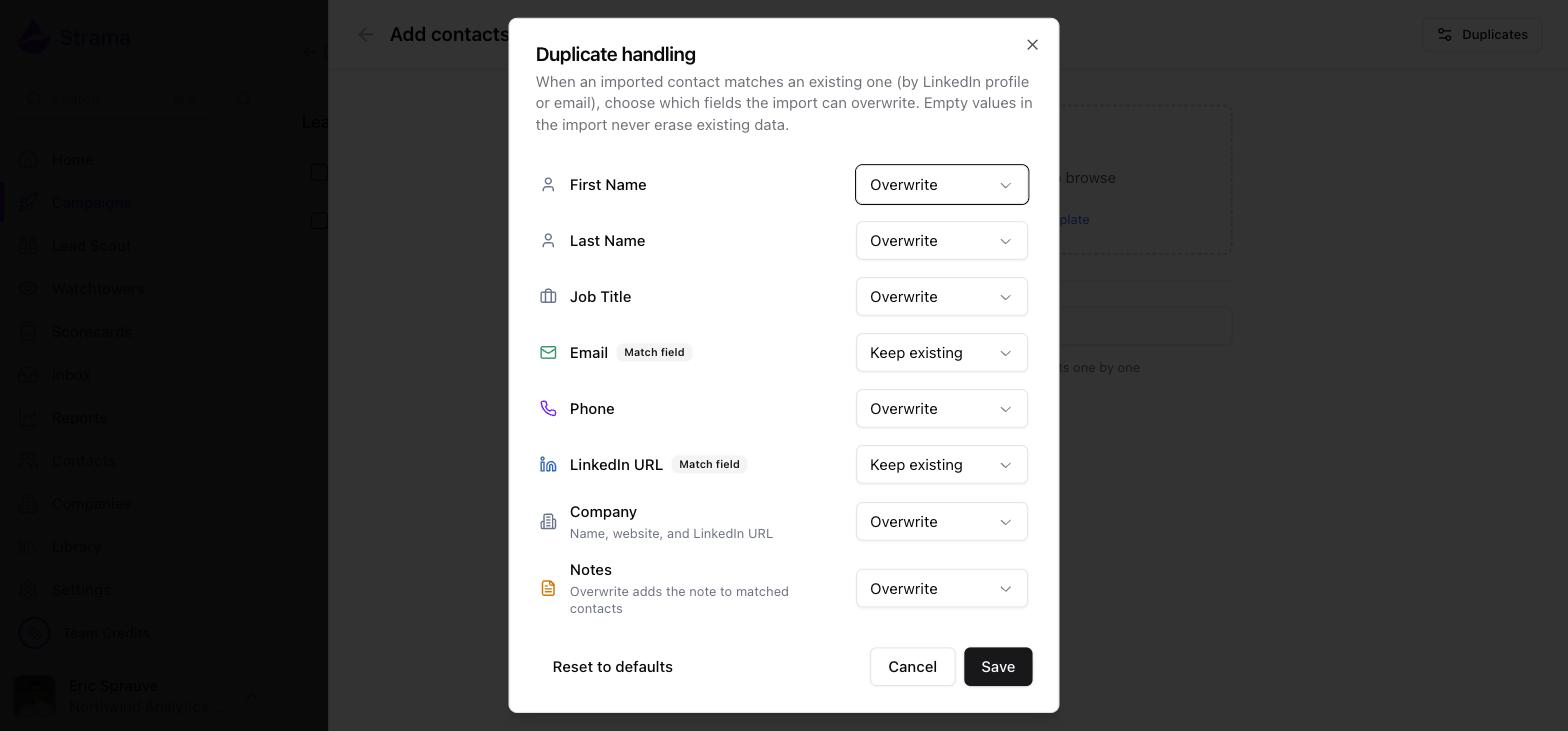
Each field is set to either Overwrite or Keep existing:
| Field | Default |
|---|---|
| First name, last name, job title, phone | Overwrite |
| Keep existing | |
| LinkedIn URL | Keep existing |
| Company (name, website, and LinkedIn URL) | Overwrite |
| Notes | Overwrite (adds the note to matched contacts) |
Email and LinkedIn URL default to Keep existing because they're the match fields: they're how Strama recognized the contact in the first place, so the import doesn't rewrite them unless you say so.
Three rules apply no matter what you choose:
- An empty cell in your CSV never erases existing data, even on Overwrite.
- Keep existing still fills a field that's currently blank. It only refuses to replace a value that's already there.
- Your Duplicate handling choices last for the current upload session only. The dialog resets to the defaults each time you close the Add contacts panel, so re-check it before an update run.
Note: Contacts added from Lead Scout are the exception: if a Scout result matches someone already in your workspace, the existing contact is reused exactly as it is, with no field updates.
Why a corrected email didn't take
This is the most common re-upload surprise. You fixed an address in the spreadsheet, re-uploaded, and the contact still shows the old email. There are two causes:
- Email defaults to Keep existing. The row matched on LinkedIn URL, and since the contact already had an email, the import kept it. Open Duplicates, set Email to Overwrite, and upload again.
- Another contact already owns that email. An email address can only belong to one contact per workspace. If the corrected address is already on a different contact record, the import skips the email change for that row without reporting an error. Find the other record in Contacts and delete or edit it first, then re-upload.
Once the correction lands, it takes effect immediately: sequences always send to the email currently on the Contact record, not to an address captured when the sequence was written. Fixing the record fixes every future send, including the remaining steps of sequences that are already running.
Fixing the company link
Companies have their own matching rules, and they explain the classic "I re-uploaded with the right company LinkedIn URL and nothing changed" report:
- A company is matched by its LinkedIn company URL first, then by its website domain. The company name is never used for matching.
- A company is only created when the row has a company name plus at least one anchor (website or LinkedIn company URL). A name alone creates nothing, no matter how accurate it is.
- With Company set to Overwrite (the default), a matched contact is re-linked to whatever company the row resolves to. The old company record itself stays in your workspace; delete it from the Companies page if it was wrong.
Tip: If you're correcting a company LinkedIn URL, correct or clear the company website column in the same row. If the row still carries the old website, the domain match can resolve back to the old company. And paste company URLs clean, without ?utm_... style tracking parameters on the end.
Removing from a campaign is not deleting
Selecting leads inside a campaign shows a Remove action. Removing a lead deletes that campaign's sequence for them: the generated messages and the campaign-specific research go away, and the lead disappears from the campaign.
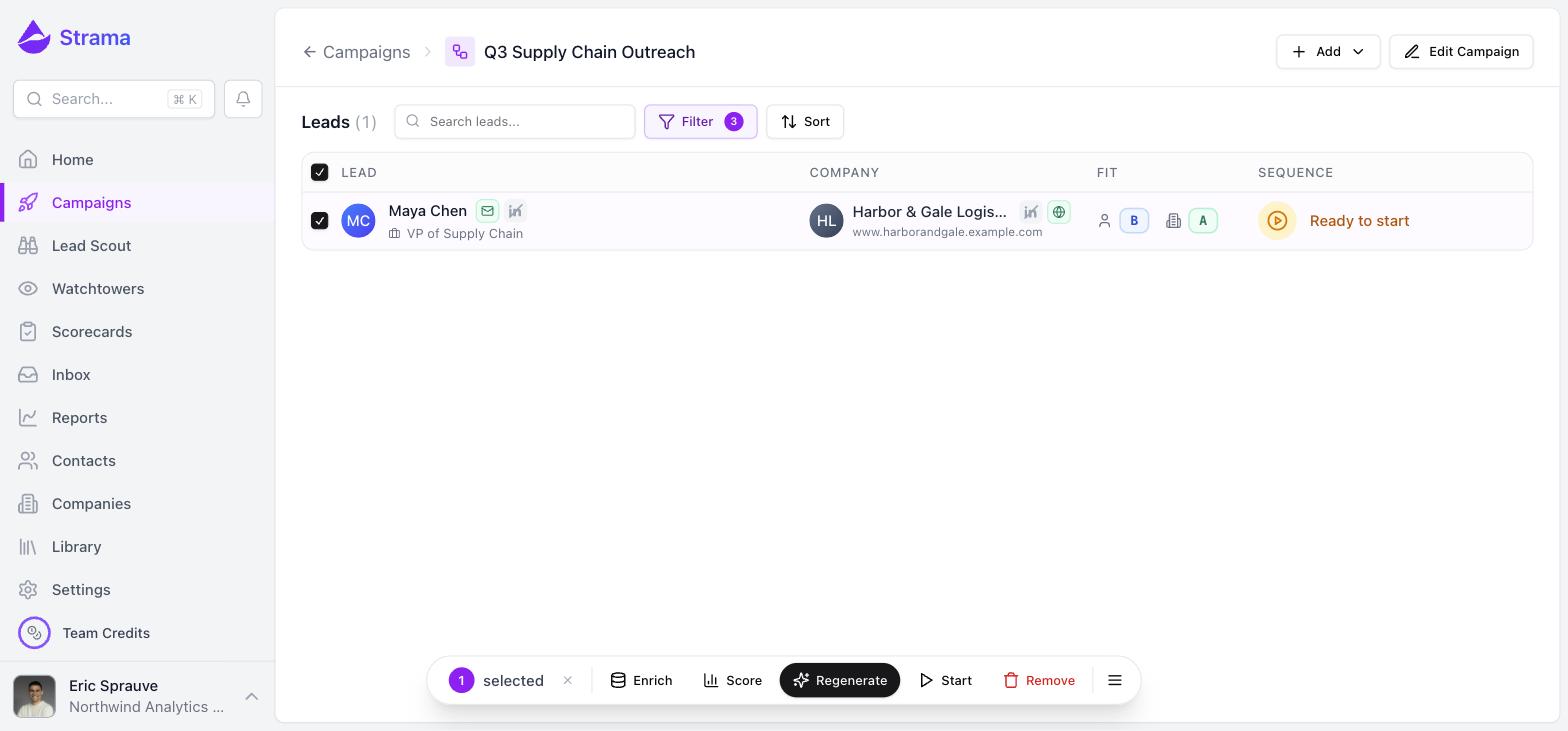
The Contact record survives, along with its company link, notes, fit grades, and full conversation history. If you add the same person to that campaign (or another one) later, their existing grades are picked up automatically and a fresh sequence is generated.
Leads that are mid-flight (qualifying, generating, or actively running) can't be removed; pause them first.
Deleting a contact for real
To remove someone from Strama entirely, go to the Contacts page, select them, and use the delete action in the toolbar that appears.
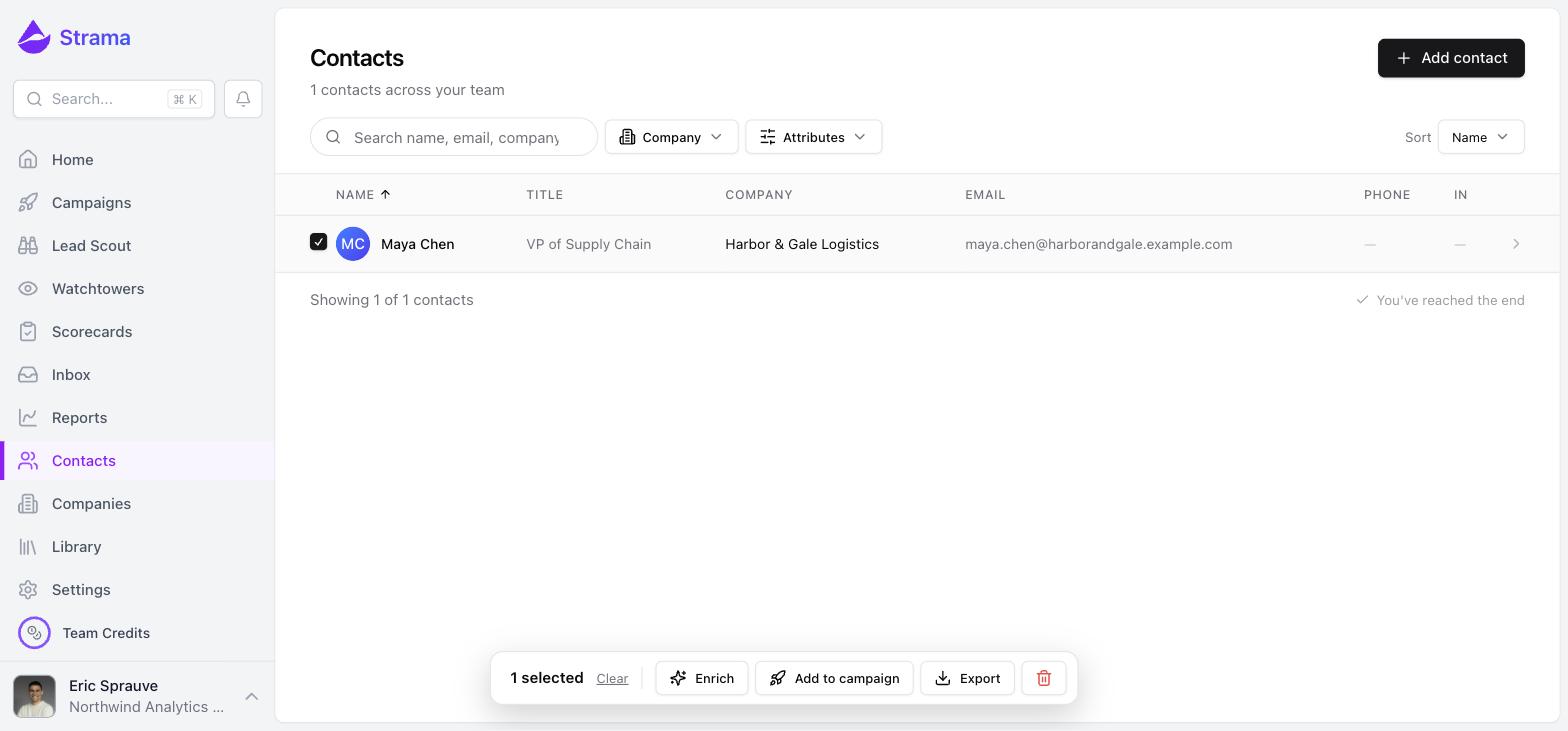
As the confirmation says, this permanently removes the contacts along with their sequences, notes, and related activity, and it can't be undone. Research, grades, and campaign membership all go with the record. You can also delete a single contact from their detail page via the Delete contact menu item.
Two things to know:
- If any selected contact has a sequence that's actively running, qualifying, or generating, the delete is blocked until those sequences are paused or finished.
- After a delete, uploading that person again creates a brand-new contact with a clean slate. Old notes, grades, and conversation threads do not re-attach.
Deleting and re-uploading is the right fix when a record's identity fields (the email and LinkedIn URL themselves) are wrong and you want to start clean.
FAQ
Why does Strama say my contacts were already added?
The "All contacts were already added" message means every row in your upload matched an existing contact and nothing new was created or changed. That's matching working as intended: the people are already in your workspace, possibly added by a teammate or an earlier list. A contact can be in several campaigns at once, so being "already added" to the workspace doesn't block you from adding them to a new campaign.
Can I mass-update existing contacts instead of deleting and re-uploading?
Yes, and it's exactly what a re-upload is. Export or prepare a CSV with the corrected values, open Duplicates, set the fields you want corrected to Overwrite, and upload. Matched contacts are updated in place; nothing is duplicated.
Why did my outreach go to the wrong email addresses after a CSV upload?
Sequences send to the email currently on each Contact record. If sends went to a wrong address, that address was on the record at send time, usually because a correction didn't take during a re-upload (see the two causes above). Fix the record and future sends, including the remaining steps of running sequences, will use the new address.
Can I delete leads entirely so I can re-upload them with corrected data?
Yes. Delete them from the Contacts page (not just from the campaign), then upload the corrected list. The upload will create fresh records because there's nothing left to match against. Keep in mind the old history is gone for good; if only one field is wrong, an Overwrite re-upload is the gentler fix.
Why doesn't re-uploading with the correct company LinkedIn URL link the company?
Check three things: the CSV column is actually mapped to Company LinkedIn URL in the mapping step (a header like "Company LinkedIn" maps automatically; other names need manual mapping), the URL is clean with no tracking parameters, and the row's company website column isn't still carrying the old company's domain, which can win the match. The row also needs a company name if the correct company doesn't exist in your workspace yet, since a company can't be created without one.