Edit, revise, regenerate
The three ways to change a generated sequence: edit any step directly, ask the AI to revise a single step, or regenerate the whole sequence. Covers the two free regenerations per lead, switching senders, and adding or removing steps and channels.
When Strama generates a sequence for a lead, every step arrives as a draft and nothing sends until you start the sequence. That review window is where most fine-tuning happens, and there are three ways to make changes, from smallest to largest:
- Edit a step directly. You type, it saves. Free and unlimited.
- Revise a step with AI. You give an instruction, the AI proposes a rewrite of that one step, and you review the changes before accepting. Also free.
- Regenerate the sequence. The AI rewrites every step from scratch, optionally guided by your feedback. Each lead gets two free regenerations; after that a regeneration costs the same credits as generating a sequence.
This article walks through each one, plus adding and removing steps and channels, and what you can still change after a sequence starts.
Edit a step directly
Open a lead from the campaign and switch to the Sequence tab. Every step has a menu in its top-right corner:
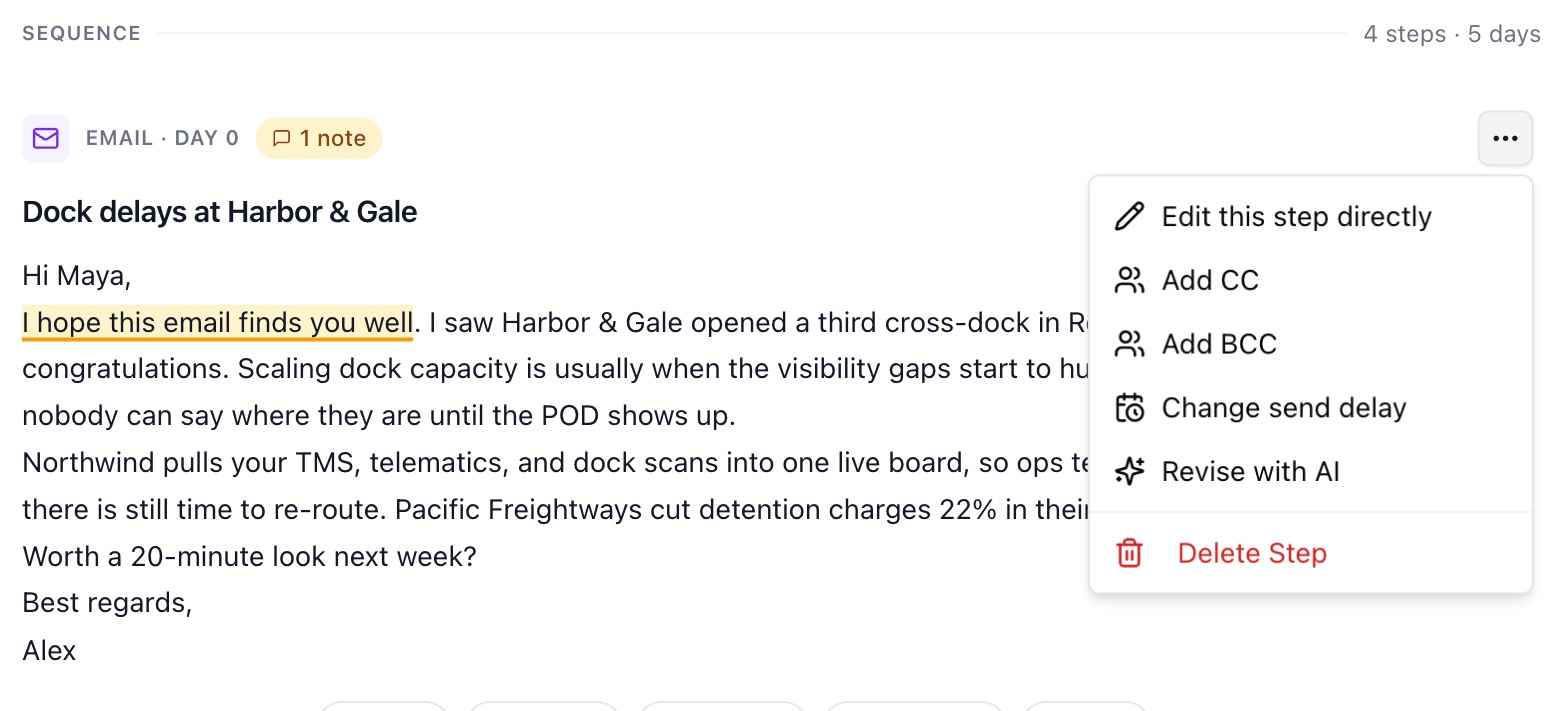
Edit this step directly opens the subject and body for normal typing. Direct edits are free, unlimited, and save only to this lead's sequence. From the same menu you can add CC or BCC addresses to an email step and Change send delay to move the step to a different day.
Two rules apply when moving a step's day: a step can never be scheduled before the step ahead of it in the same sequence, and two steps of the same type cannot share a day. The dialog tells you the earliest valid day.
Note: Once a step has gone out it is locked. Trying to change it shows "This step has already gone out and can no longer be edited." Anything that has not sent yet stays editable, even while the sequence is running.
Editing fixes this one message for this one lead. If the AI keeps making the same mistake across many messages, leave a note on the draft instead: notes become style guide rules that shape every future generation.
Revise one step with AI
Revise with AI in the step menu is for when you know what is wrong but do not want to rewrite it yourself. Describe the change ("tighten the middle paragraph", "make the ask more casual", "lead with the pricing angle") and the AI drafts a new version of just that step.
You always review before anything is saved. The Changes tab shows an edit-by-edit comparison against the current copy, and New version shows the clean result:
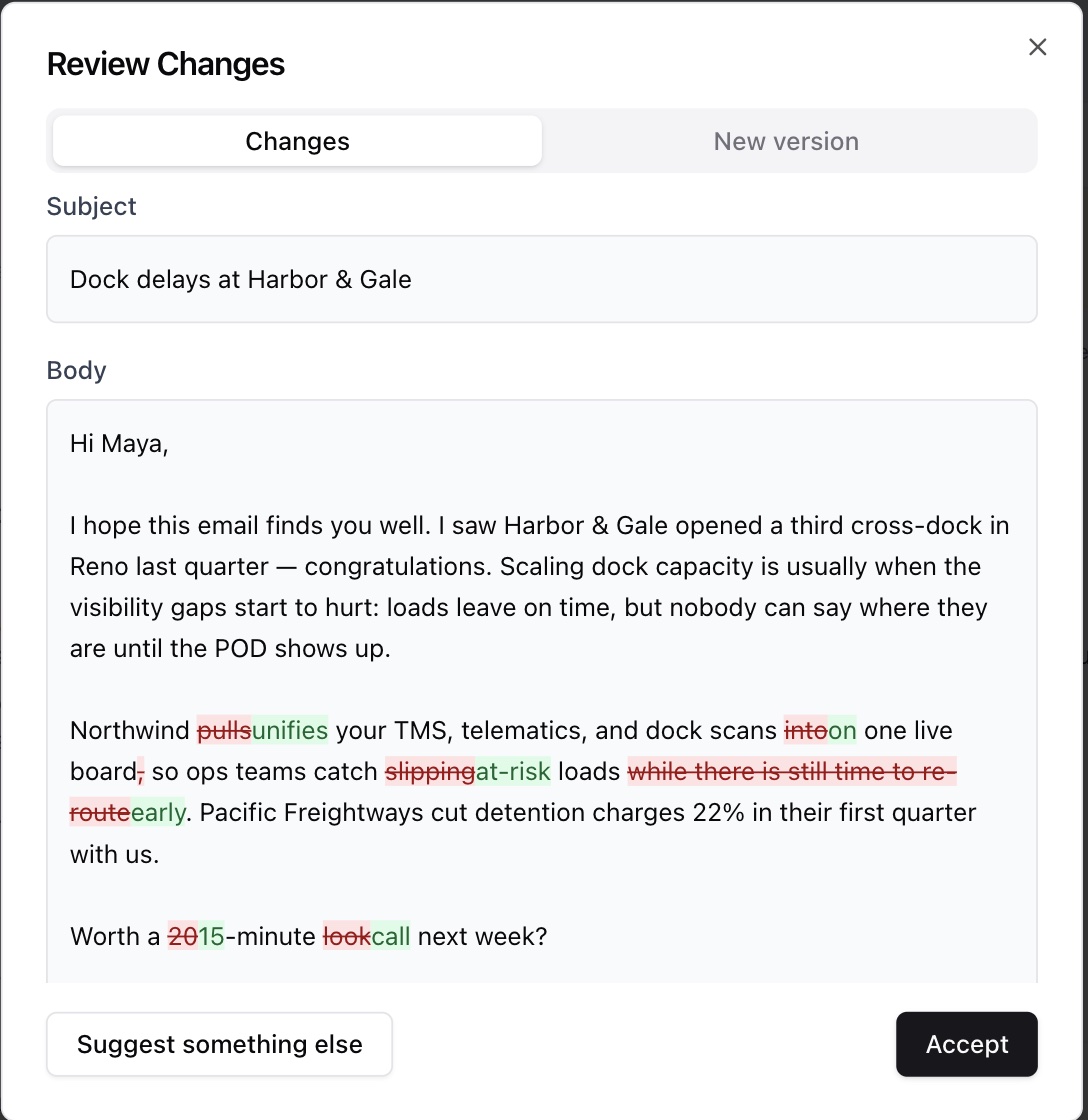
If the proposal is not right, Suggest something else sends it back with new instructions. Revisions are free and do not count against your regenerations.
Regenerate the whole sequence
Regenerating throws away the current draft steps and writes the sequence again from your campaign's current settings, the lead's research, and your team's style guide. Use it for macro changes that touch every message: a new angle, a different offer, a tone shift, or picking up edits you made to the campaign's step plan after this lead was generated.
Open the menu at the top right of the sequence view and choose Regenerate Sequence:
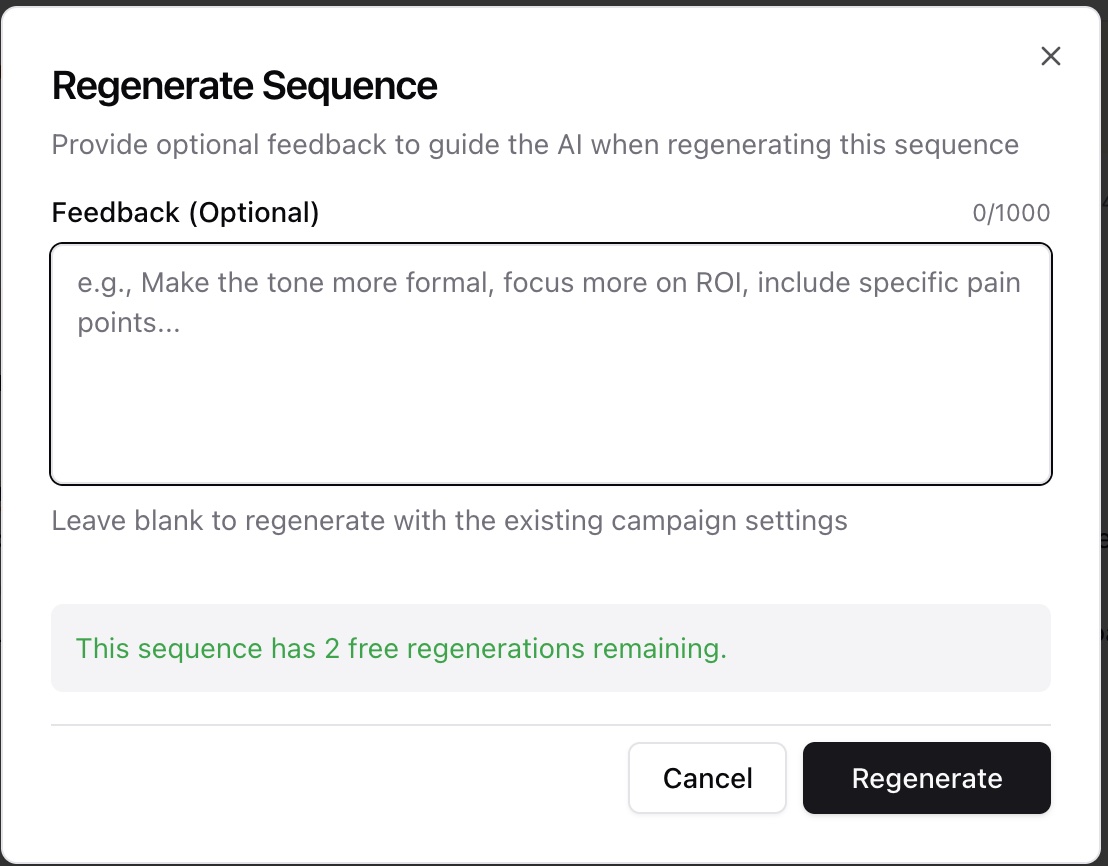
The feedback box takes up to 1,000 characters of one-time guidance for this run ("make the tone more formal", "focus on their Reno expansion"). Leave it blank to regenerate with the campaign settings as they stand.
A few things to know before you click Regenerate:
- Each lead's sequence starts with 2 free regenerations. After those are used, each regeneration costs the same as generating a sequence (5 credits).
- It replaces everything. Direct edits and accepted revisions on the old draft are gone; steps that were already sent are not affected because regeneration is only available before the sequence starts.
- It is only available before you start the sequence. Once a sequence is running or finished, the Regenerate option goes away. Edit, revise, add, or delete the remaining steps instead.
- Expect a few minutes per lead. Generation is a pipeline, not a single AI call: Strama maps your offer to the lead, runs research, writes each step, then verifies claims against sources. You can watch the stage it is in from the campaign's leads table.
Switching the sender
If your team has more than one sender, the Regenerate dialog also shows a Sender dropdown. Pick a different sender and the sequence is rewritten in that person's voice, uses their signature, and sends from their connected email and LinkedIn accounts. This is the supported way to move a generated sequence to another sender; there is no separate "change sender" switch, because the copy itself has to change with the voice.
Regenerating in bulk
To regenerate many leads at once, select them in the campaign's leads table with the row checkboxes and choose Regenerate from the action bar. Only leads whose sequences have not started yet are eligible. The dialog totals it up before you confirm: how many will use a free regeneration and how many will use credits.
Add and remove steps
The same top-right menu has Add Step. You choose the step type, where it slots in, and the day; the AI writes the content to fit what the rest of the sequence already says, which takes a minute or two.
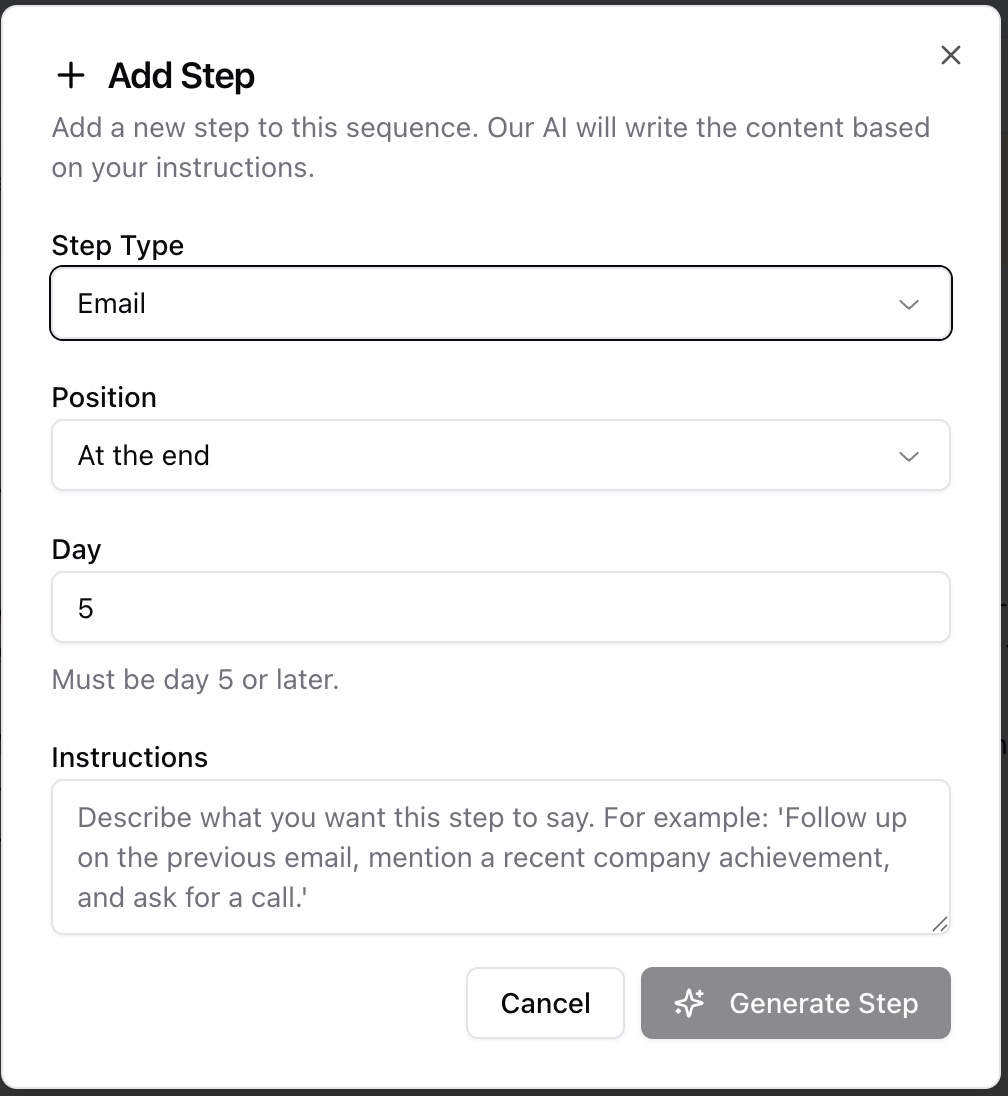
You can only add steps to channels the sequence already has: adding an email requires an existing email track, and the LinkedIn connection invite is what unlocks adding LinkedIn messages and profile visits. Each channel holds up to 12 steps.
To remove a single step, use Delete Step in that step's menu. The option disappears once a step has gone out, and the LinkedIn invite cannot be deleted while message steps still depend on it (delete those first).
To drop an entire channel, use Remove Channel in the sequence menu:
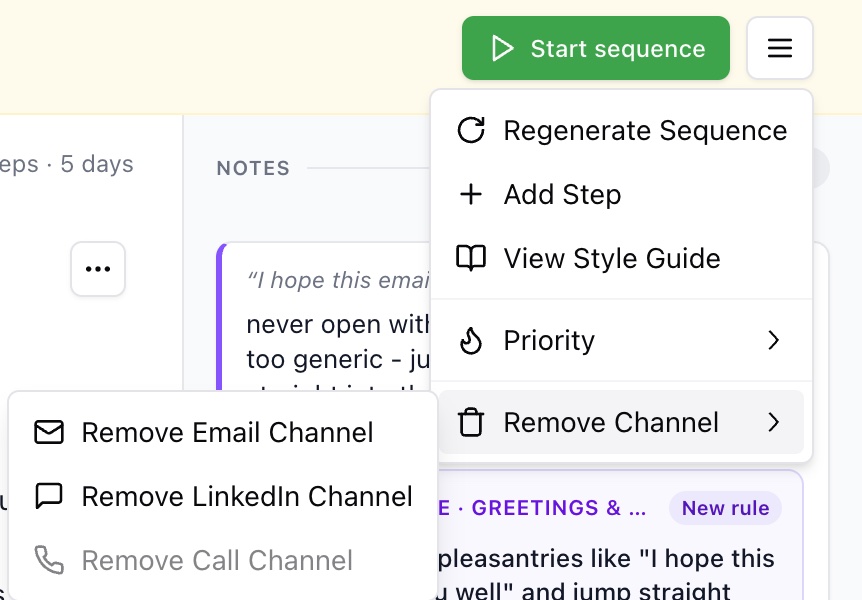
Removing a channel deletes every step on it for that lead, and a sequence must always keep at least one channel. The same option is available in bulk from the leads table selection.
Note: All of the changes on this page apply to one lead's sequence. To change what future leads get, edit the campaign's sequence plan instead; campaign-level edits do not rewrite already-generated sequences, but a regeneration picks them up.
After a sequence starts
Starting a sequence narrows your options but does not close them. Steps that have not gone out yet can still be edited directly, revised with AI, moved to a different day, or deleted, and you can still add new steps or remove a whole channel.
Two things do close once a sequence is running: sent steps cannot be changed, and the sequence can no longer be regenerated. If a running sequence needs a full rewrite, the practical path is to complete or remove it and generate a fresh one, keeping in mind that anything already sent has been seen.
FAQ
How many times can I change a sequence after it is generated?
Direct edits and AI revisions are unlimited and free. Full regenerations are limited: 2 free per lead, then 5 credits each.
What is the difference between editing a step, revising a step, and regenerating?
Editing is you typing into one step. Revising is the AI rewriting one step from your instruction, with a review-and-accept diff. Regenerating is the AI rewriting the entire sequence from your campaign settings, optionally guided by feedback. Only regeneration is limited or paid.
Can I switch which sender a sequence sends from after it is generated?
Yes. Open Regenerate Sequence and pick the new sender from the Sender dropdown (it appears when your team has more than one sender). The sequence is rewritten in their voice and sends from their accounts with their signature.
Does regenerating just to change the sender still use a free regeneration or credits?
Yes. A sender switch is a full regeneration, because the messages are rewritten in the new sender's voice, so it uses one of the lead's free regenerations or 5 credits like any other regeneration.
Is there a way to regenerate sequences in bulk?
Yes. In the campaign's leads table, select the leads with the checkboxes and choose Regenerate from the action bar. Only leads that have not started sending are eligible, and the confirmation dialog shows how many regenerate free versus on credits.
How do I remove the LinkedIn steps from my campaign?
For leads that already have sequences, select them in the leads table (or open one lead's sequence menu) and use Remove Channel, then Remove LinkedIn Channel. That deletes the LinkedIn steps but keeps the email track. For leads you add later, remove the LinkedIn channel from the campaign's sequence plan so new sequences generate without it.